How to use Claude Cowork effectively: setup, delegation, permissions and 8 task templates for businesses
A guide to using Claude Cowork based on Anthropic's official pages (October 20, 2026): requirements, a 6-step setup, 3 permission modes, a 6-part delegation framework, Projects, scheduled tasks and 8 task templates.
Most people new to Claude Cowork start by typing a request the way they would in chat, then are disappointed by a generic result or worried because they do not know which files the AI is touching.
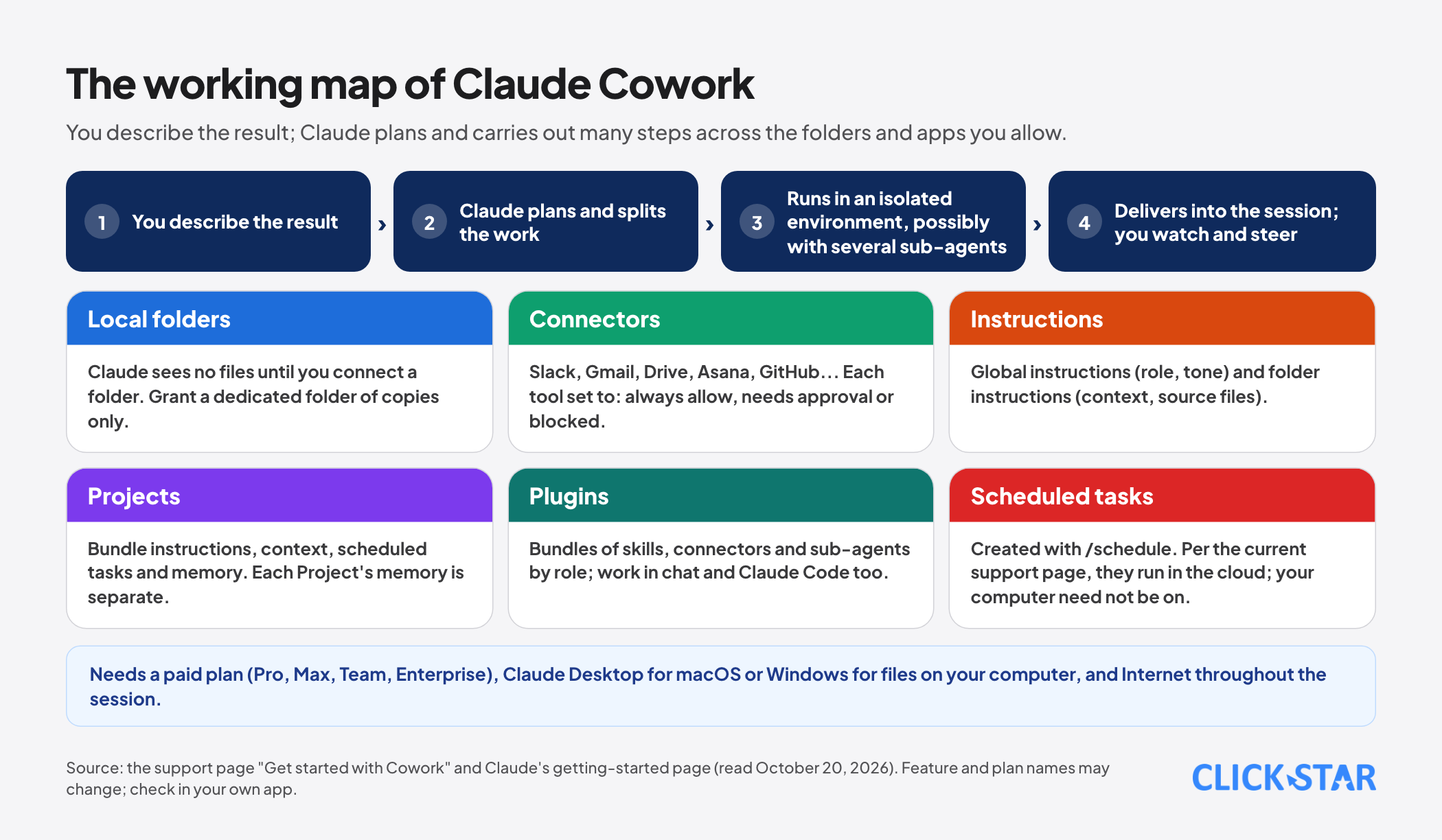
Cowork works differently from chat: you describe the result you want, and Claude plans and carries out many steps across the folders and apps you allow.
Using it well therefore comes down to 3 things: setting up permissions and instructions correctly from the start, delegating work with a clear framework, and checking the result before you use it.
This article is based on Anthropic's official guidance pages read on October 20, 2026 (the support page "Get started with Cowork," Claude's getting-started page and the page on Projects in Cowork), and separates what Anthropic has published from the delegation framework and the 8 task templates proposed by Click Star.
Click Star already has articles on the October 2026 Claude updates and on analyzing the Claude models; this one focuses on using Cowork in everyday work.
Key points
- Cowork brings Claude Code's agentic architecture to office work: you describe the result, Claude plans, splits the work, runs code in an isolated environment and can use several sub-agents in parallel; you watch and steer midway, with no command line needed.
- You need a paid plan (Pro, Max, Team or Enterprise), the Claude Desktop app for macOS or Windows to reach files on your computer, and an Internet connection throughout the session.
- Claude sees no files until you connect a folder; grant only folders you are comfortable sharing, and Claude needs your explicit permission before permanently deleting files.
- There are 3 permission modes: Manual (asks before each action, the default), Auto (reads are pre-approved, writes or deletes are decided by Claude with a safety check, using more of your usage) and Skip (nothing checked, only when you trust everything completely).
- Global instructions, folder instructions and Projects help Claude remember your role, tone and context; each Project's memory is kept separate.
- Multi-step work uses more of your usage than chat; grouping related work in one task and saying when you only need a quick answer saves a lot.
What Cowork is and how it differs from ordinary chat
Cowork is Claude's working mode for knowledge work: organizing files, building spreadsheets or slide decks, synthesizing research.
According to Anthropic's support page, Claude plans, splits complex tasks into subtasks, runs code and commands in an isolated environment, coordinates parallel sub-agents when useful, and delivers the results into the session.
Sessions and files are saved to your account so work continues even if you close your laptop, and you can reopen the session from other surfaces. When a task needs your computer (local files, the browser, computer control), Claude goes through the Desktop app, so the app must be open and connected.
There are 3 differences from chat. First, the result is files and actions, not only a text reply. Second, one request can run long, across many steps, and can keep running after you close the window. Third, the scope of Claude's permissions is yours to decide, by folder, by app and by type of action.
That is why setting up permissions matters as much as the quality of the request.
Requirements
According to the support page on October 20, 2026:
- Plan: paid plans only (Pro, Max, Team, Enterprise). Businesses on Team or Enterprise may need an administrator to enable Cowork.
- Computer: Claude Desktop for macOS (all paid plans) or Windows (all paid plans, latest version required). Local file access, the browser and computer control require the Desktop app to be open and connected.
- Web and mobile: available on claude.ai and the mobile apps for Pro, Max and Team; Enterprise needs an administrator to enable it. The Chrome side panel is available to Max and Team and is rolling out to Pro.
- Connection: an Internet connection is needed throughout the session. Cloud execution is in beta for Team and Enterprise.
Setting up correctly from the start: 6 steps
Claude's getting-started page describes the following process, which Click Star rearranges into 6 steps:
- Install the Claude Desktop app, sign in and switch to Cowork mode.
- Connect the apps you use most through connectors (for example Slack, Gmail, Drive, Asana, GitHub). Each tool of a connector can be set to always allow, needs approval or blocked, under Customize > Connectors or the "+" button.
- Choose a permission mode (see the next section). Newcomers should begin with Manual.
- Grant folders only when needed. Claude sees no files until you connect a folder, and you can add folders later. Create a dedicated folder for Cowork instead of granting a whole drive.
- Write global instructions under Settings > Claude Cowork (where Global instructions are): role, tone, output format, naming conventions.
- For each working folder, write folder instructions in the Customize panel: project context, which files are the source of truth, what must not be touched. Claude can also update this itself as it learns how you work, so review it periodically.
Permission modes and safety
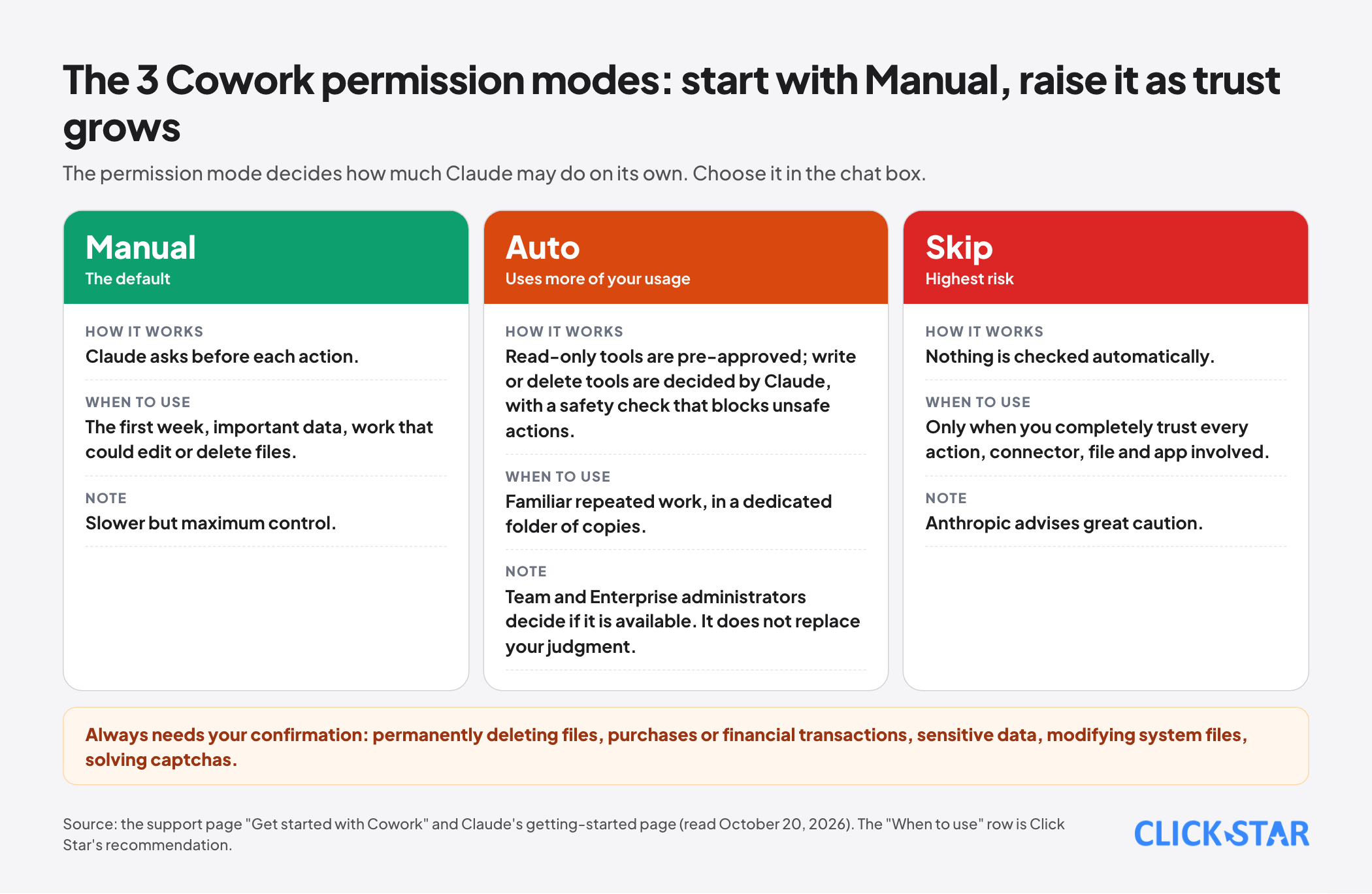
Cowork has 3 modes, chosen in the chat box:
- Manual: Claude asks before each action; the default in the new experience.
- Auto: read-only tools are pre-approved; for write or delete tools, Claude decides, with a safety check that blocks unsafe actions. This mode uses more of your usage, and Team and Enterprise administrators decide whether it is available.
- Skip: nothing is checked automatically. Anthropic advises using it only when you fully trust every action, connector, file and app involved.
Some safety points from the documentation: code and commands run in an isolated environment, but isolation does not limit what Claude can do with access you have granted; Claude needs an explicit "Allow" before permanently deleting files and is designed to confirm first for sensitive actions such as solving captchas, purchases or financial transactions, handling sensitive data and modifying system files; web search, web fetch and Claude in Chrome are not covered by the network permissions you set; and Auto mode is designed to catch prompt-injection attacks but does not replace your judgment.
Team and Enterprise owners can turn off web search and Claude in Chrome at the organization level.
Click Star's view. For Vietnamese businesses, the practical principle is to separate data: the folder granted to Cowork should contain only copies of the files to be processed, and no customers' personal data unless there is a legal basis and the provider's data-handling terms have been read.
The Law on Personal Data Protection has been in effect since January 1, 2026; when using customer data, check the original text and ask a legal professional. For tasks that could edit or delete files, back up the folder first.
A 6-part delegation framework
Anthropic advises starting with a real task you already do, not a toy example, and gives examples such as pointing Claude at a folder of PDFs to produce a 1-page brief, drafting a status update from a Slack channel, or cleaning a messy spreadsheet and creating a chart.
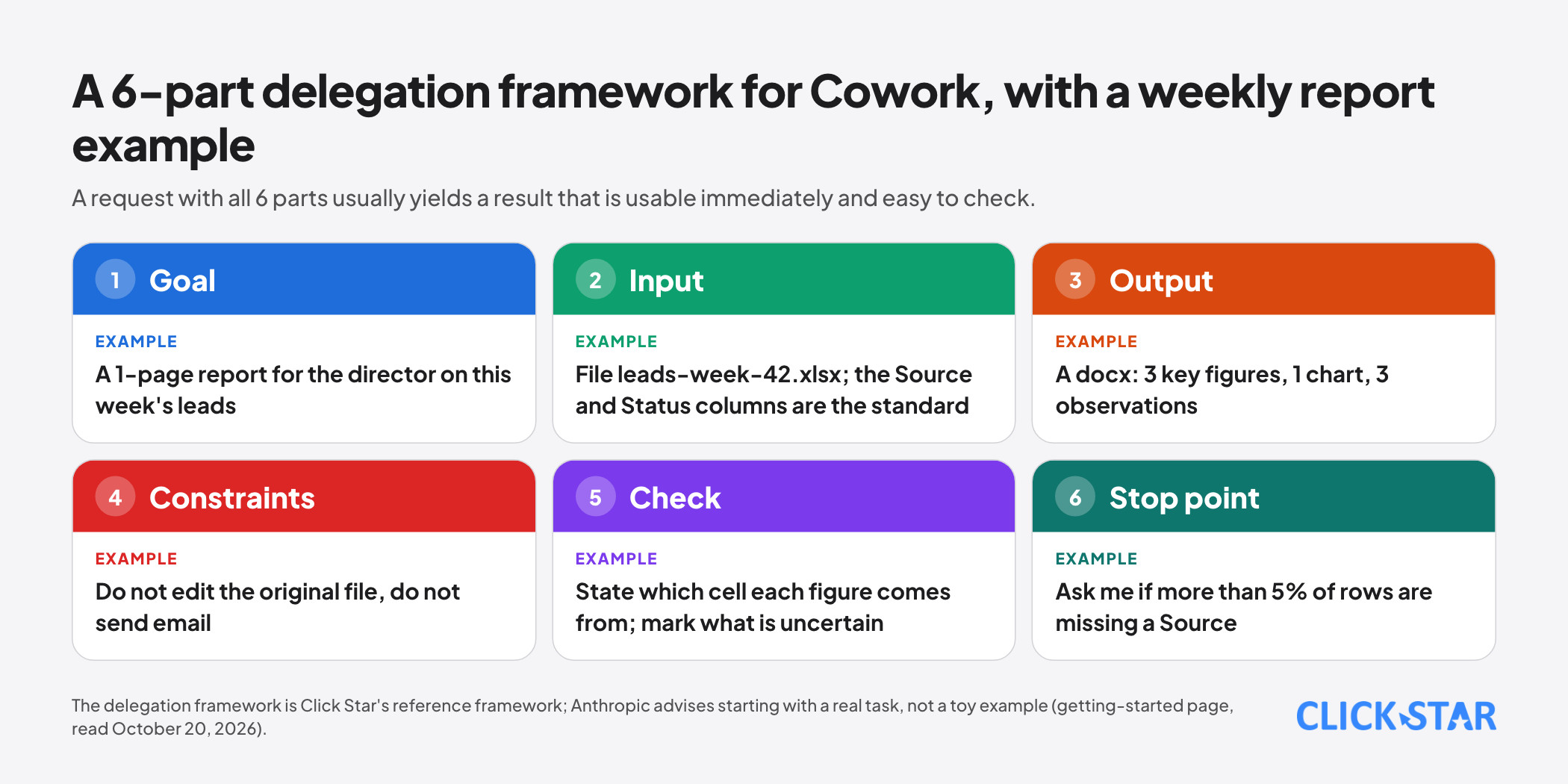
The getting-started page says plainly that it does not go deep on how to write requests, so the framework below is Click Star's reference framework:
- Goal: the final result needed, what it is for and who it is for.
- Input: which files or sources to use, and which is the standard if they conflict.
- Output: format, length, where to save it (file name, folder).
- Constraints: what must not be done (do not delete, do not send, do not edit original files), naming conventions, tone.
- Check: ask Claude to list assumptions, where each figure came from, and to mark what it is unsure about.
- Stop points: situations where it must ask before continuing (missing data, a conflict, a need to delete or overwrite).
A shortened example for a weekly report: "Goal: a 1-page report for the director on this week's leads. Input: the file leads-week-42.xlsx in the Reports folder; the Source and Status columns are the standard. Output: a docx named report-week-42 with 3 key figures, 1 chart and 3 observations.
Constraints: do not edit the original file, do not send email. Check: state which cell each figure comes from. Stop point: ask me if more than 5% of rows are missing a Source."
Projects, plugins and scheduled tasks
Projects bring instructions, context (a local folder or a link), scheduled tasks and memory into one place.
According to the page on Projects, each Project's memory is separate, so what Claude learns in one Project does not carry over to another; a Project shares memory with chats outside Projects unless you turn off "Use account memory." Archiving a Project only removes its metadata from the interface and does not affect files on your computer.
On Team and Enterprise, a Project can be shared with view or edit access.
Plugins bundle skills, connectors and sub-agents into a set for a role or team; added plugins are saved to your account and work in chat and Claude Code as well.
Scheduled tasks are created with the /schedule command or the Scheduled section in the sidebar; according to the current support page, these tasks run in the cloud so your computer does not need to be on.
Some third-party material has said scheduled tasks run only while the computer is awake and Desktop is open, so check the latest support page and test before relying on a schedule for anything important. Sessions cannot be shared, but individual artifacts can.
8 task templates for businesses
These are Click Star's suggestions, not Anthropic's list; the way to verify each one is included.
- A weekly report from a data file: Claude reads the table, computes metrics and writes a 1-page report. Check: compare the 3 key figures with the source table.
- Summarizing a document folder: gather a folder of PDFs into a summary by topic. Check: open 3 random citations and compare with the original.
- Cleaning a customer table: standardize column names, phone numbers, dates, and mark duplicate rows. Check: work on a copy and compare row counts before and after.
- Drafting replies from meeting notes: produce a draft, no automatic sending. Check: the sender reads every sentence.
- Classifying and renaming files: by a naming convention you have written. Check: ask for the rename list to approve before it is carried out.
- Compiling competitor research into a comparison table with a source column. Check: open the sources of the important figures.
- Building a draft presentation from a document. Check: figures and proper names are taken correctly from the document.
- Reconciling 2 data files (for example an ad report and the CRM) and listing the differences. Check: manually trace the 5 largest differences.
Saving usage
According to Anthropic, multi-step work uses more of your usage than quick questions because each step consumes tokens. The ways to save that it lists: group related work into one task, start a new conversation for unrelated work, say plainly when you only need a quick answer, and check the Usage section in Settings.
Auto mode also uses more of your usage. Click Star already has a separate article on 9 token-optimization techniques; its principles (measure before optimizing, keep context lean) apply when using Cowork too.
A 14-day plan
- Day 1: install Desktop, sign in, choose Manual, and create a dedicated folder for Cowork containing copies of test files.
- Days 2 to 3: write global instructions (role, tone, format) and folder instructions.
- Days 4 to 7: run 1 real task per day using the 6-part framework, recording time saved and the number of errors to fix.
- Days 8 to 10: create a Project for a recurring area of work; try connecting one app with read-only permission.
- Days 11 to 12: try one scheduled task with a low-risk job (a morning summary); check that it runs as described.
- Days 13 to 14: review the instructions, narrow any excess permissions, and decide which tasks are stable enough to delegate regularly and which always need a human reviewer.
Common mistakes
- Granting a personal folder or a whole drive instead of a dedicated folder with copies.
- Turning on Skip from day one because the approval steps are annoying.
- Delegating work with no check criteria, then using the result without comparing figures.
- Writing vague instructions, or letting folder instructions go stale without reviewing them.
- Using customers' personal data without a legal basis and without reading the provider's terms.
- Relying on scheduled tasks for important work without testing their reliability.
- Treating Cowork like chat: piling many unrelated jobs into one long session, which wastes usage and mixes up context.
Related posts
Need tailored advice for your business?
Click Star helps you build a solution that fits your industry and scale. We answer every question during business hours.