Claude Code on your phone: how Remote Control, cloud sessions and Dispatch work
A summary of the 4 ways to use Claude Code from a phone according to Anthropic's official documentation: where code runs, requirements, data safety, permission modes, push notifications, working rules and a 7-day trial plan.
Many people still assume that using Claude Code means sitting at a computer and typing commands in a terminal.
As of October 21, 2026, Anthropic lets you start, monitor and steer Claude Code sessions from your phone, but there are 4 different paths and each runs in a different place: on Anthropic's servers, on your own computer, or through the Claude Desktop app.
Choosing the wrong path is behind most of the "why can't my phone see my session" problems.
This article summarizes Claude Code on mobile according to Anthropic's official documentation (the pages "Claude Code on mobile," "Remote Control," "Use Claude Code in the cloud" and "Data usage," read on October 21, 2026), separates what the documentation confirms from Click Star's judgment, and then gives a way to choose the right path, safety rules and a 7-day trial plan.
Click Star already has articles on using Claude Cowork and on vibe coding; this one focuses on steering Claude Code from a phone.
Key points
- Claude Code has no separate mobile app. Everything is in the Code tab of the Claude app on iOS and Android (iPad uses the iOS app), and the phone is only a control screen, not where code runs.
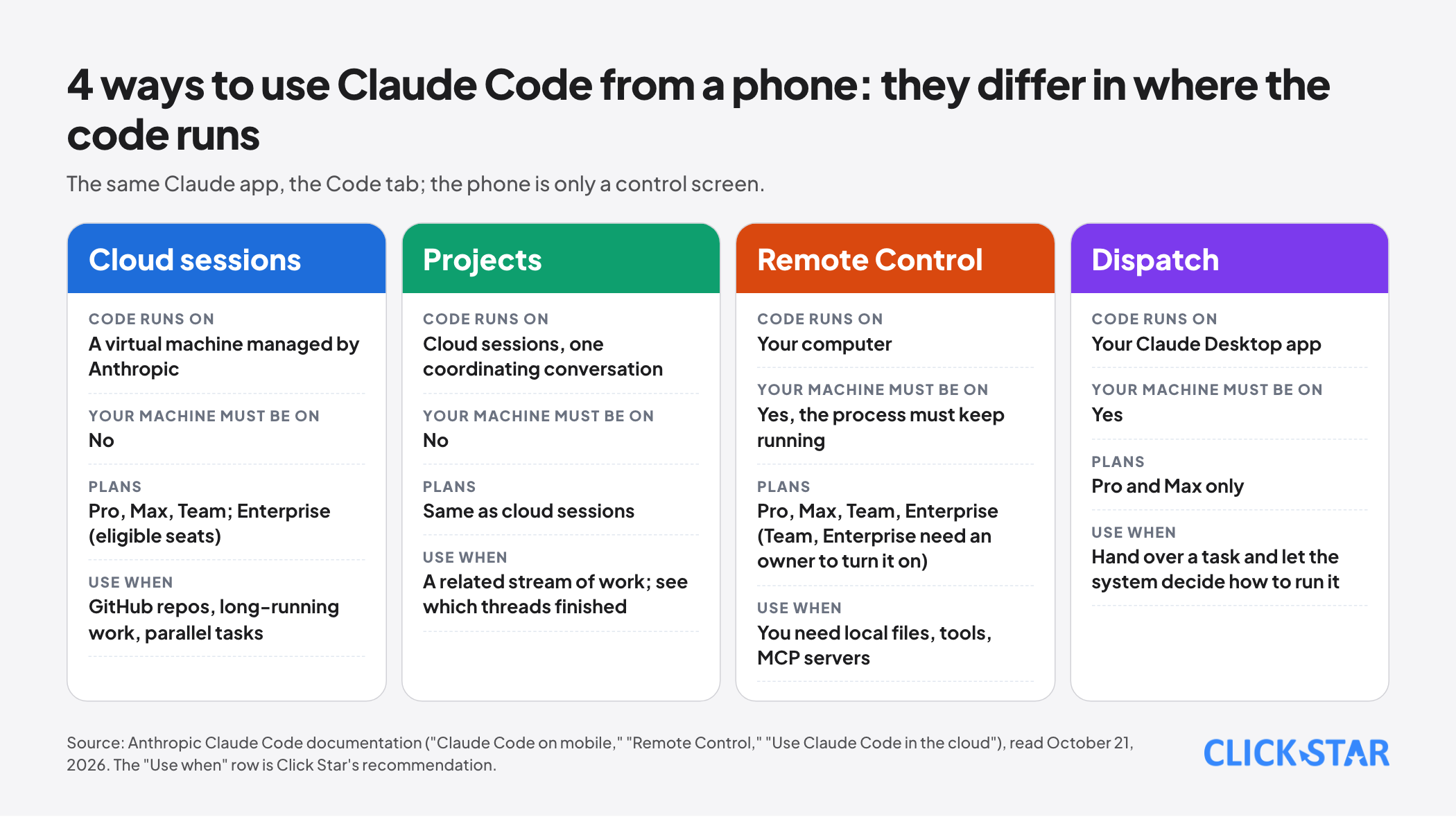
- There are 4 paths: cloud sessions (code runs on Anthropic's infrastructure and continues even when you turn your computer off), Projects (one conversation that coordinates several cloud sessions in parallel), Remote Control (steering a session already running on your computer) and Dispatch (messaging a task to the Desktop app, available only on Pro and Max).
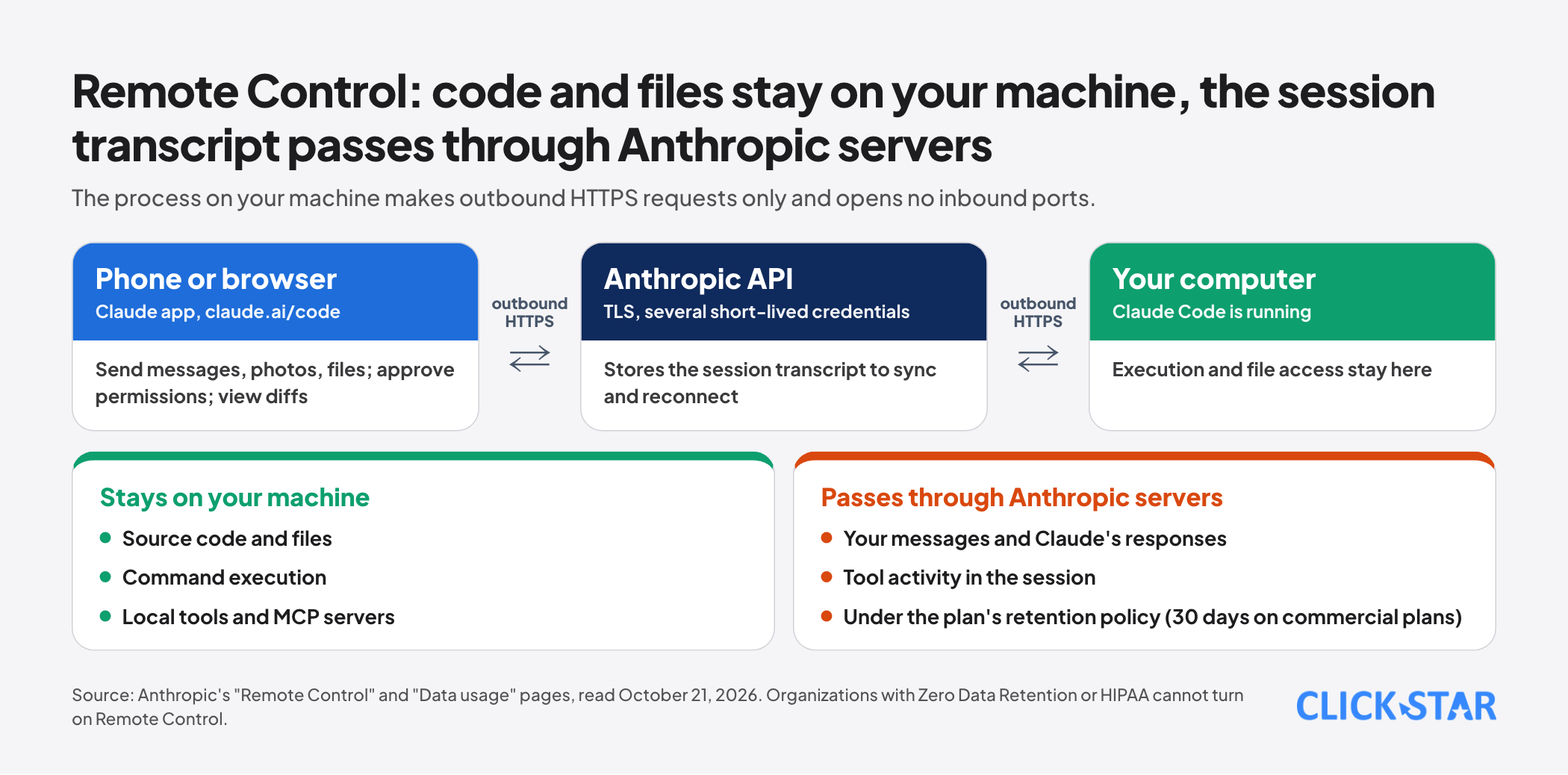
- Remote Control keeps code and files on your machine: the process makes outbound HTTPS requests only and opens no inbound ports, but the conversation transcript is stored on Anthropic's servers while connected so devices stay in sync.
- On the phone you can send photos and files, change the model and effort level and receive push notifications when a task finishes or needs a decision, but you cannot choose Bypass permissions mode, and some commands such as /plugin or /resume work only in the terminal.
- Organizations with Zero Data Retention or a HIPAA configuration cannot use Remote Control or cloud sessions; Team and Enterprise need an owner to turn the switch on first.
- Click Star's practical rule: approve changes one at a time in Manual or Plan mode when working from a phone, and do not approve infrastructure or live-data changes on a small screen without reading the diff.
The phone is only a control screen
According to the page "Claude Code on mobile," the Claude app on iOS and Android is a client for Claude Code sessions, not where code runs. To get in: download the app, sign in with the same claude.ai account and organization you use for Claude Code, then tap the Code tab.
Typing /mobile (or /ios, /android) in Claude Code shows a QR code that opens the right app store for your phone. Cloud sessions and Remote Control both require a claude.ai account, so they cannot be used with a Console API key or through a third-party provider such as Amazon Bedrock.
If you do not see the Code tab, your plan or organization may not include these features.
The point to remember is that all 4 paths share one app but differ in where the work happens. Where it runs decides 3 things: whether your computer has to stay on, where code and files live, and whether the session can reach local tools such as MCP servers.
The 4 paths and how to choose
Cloud sessions. From the Code tab, choose a GitHub repository and branch, describe the task and submit it. The session runs on a virtual machine managed by Anthropic, continues after you put your phone away, and syncs across devices: work started on a laptop can be reviewed from the phone and the other way round.
A session shares usage limits with the account's other Claude activity, and there is no separate charge for the virtual machine. From the phone you can tell Claude to watch a pull request and fix it when CI fails or comments arrive (auto-fix), provided the Claude GitHub App is installed for that repository.
Limits: the repository must be on GitHub for cloning and pull requests; the environment expires after a period of inactivity (conversation history is restored when you reopen it, but background processes that were running are not).
Projects. A conversation in which Claude coordinates several parallel threads of work and reports which finished or need you. It suits a stream of related work rather than a single task.
Remote Control. Connects the Claude app to a Claude Code session running on your computer, so the local file system, tools and MCP servers remain available. It suits the case where you are midway through work at the machine and want to continue elsewhere.
Conditions: a Pro, Max, Team or Enterprise plan (Team and Enterprise need an owner to turn on the Remote Control switch in admin settings), a claude.ai sign-in, and no Bedrock, Vertex or LLM gateway replacing the API address. The machine must keep the Claude Code process running.
Dispatch. You message a task in the app, and Dispatch decides how to run it on your Claude Desktop app. It needs the mobile app paired with Desktop and is available only on Pro and Max, not on Team or Enterprise.
Click Star's view. If the computer will be off, choose cloud sessions or Projects. If the work needs files, tools or configuration that exist only on the machine, choose Remote Control. If you only want to hand over a task and let the system decide, try Dispatch, but remember it runs on your Desktop, so the machine must be on too.
Businesses on Team or Enterprise will not have Dispatch, so Remote Control and cloud sessions are the practical choices.
How Remote Control runs
There are 3 ways to turn it on, all giving the same result, a session that can be steered remotely:
- Server mode: run
claude remote-controlin the project directory. The process keeps running in the terminal, shows a session URL, and pressing the space bar shows a QR code. You can name it with--name, run up to 32 parallel sessions by default, and choose whether each session shares the directory or gets its own git worktree (--spawn). - Interactive session: run
claude --remote-control(or--rc), typing at the machine while it can also be steered remotely. - From an existing session: type
/remote-control(or/rc); the current conversation carries over. It also works in Claude Desktop and the VS Code extension.
Once connected, open the URL, scan the QR code or go to the app's Code tab and pick the session with the computer icon and green dot. The phone, browser and terminal stay in sync on messages and sub-agent progress, so you can send messages from anywhere.
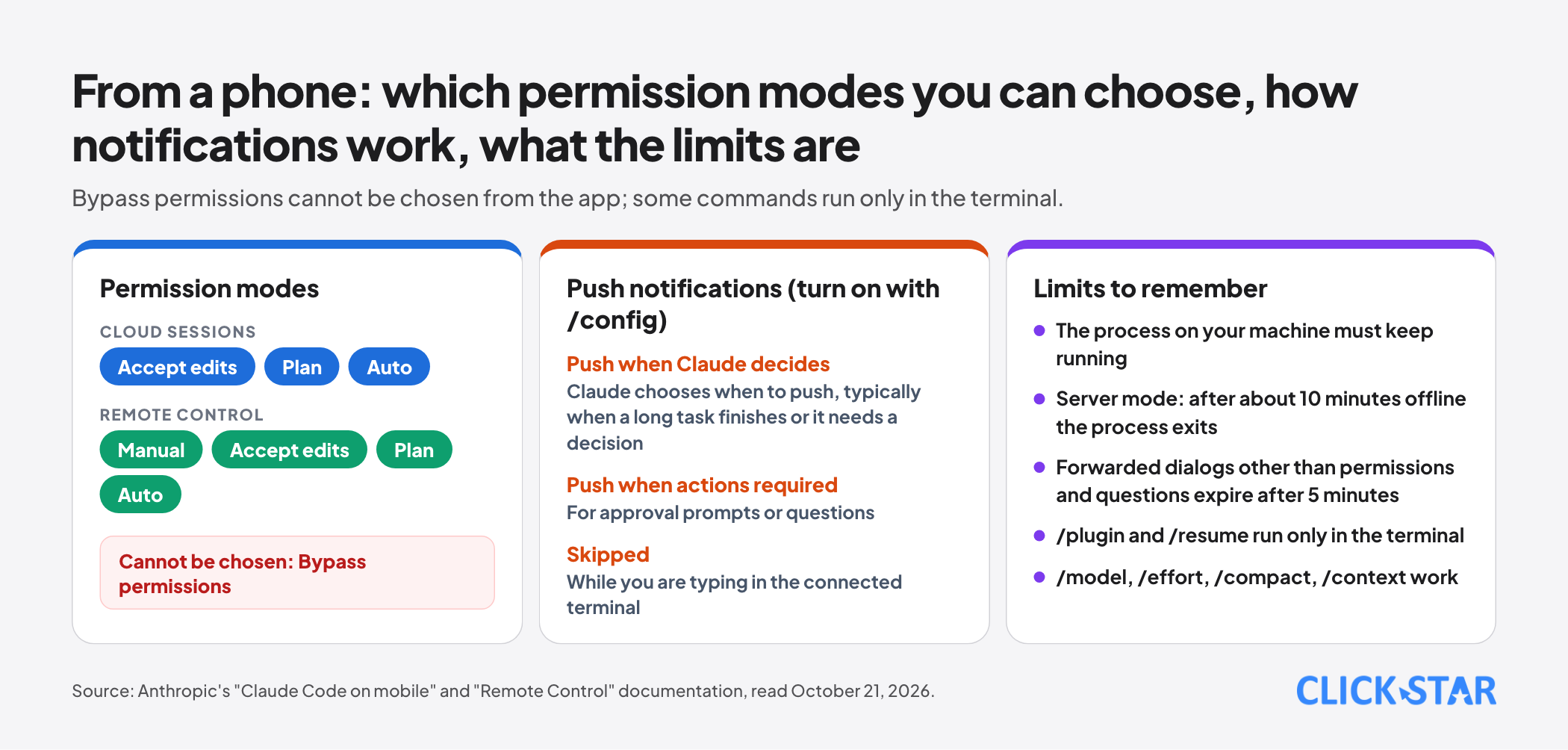
If the machine sleeps or loses its network, Claude Code reconnects when it comes back; in server mode, if the outage lasts about 10 minutes the process exits and must be run again.
From the phone you can send photos and files: Claude sees photos directly in the message, while other files are downloaded to the machine and passed to Claude as @ references.
You can choose the model and effort level from the device (requiring Claude Code 2.1.238 and 2.1.234 or later), see the diff of changes, and stop a sub-agent or a running background process.
Many text-output commands work from the phone, for example /compact, /context, /usage, /model sonnet and /effort high; commands that exist only in the terminal interface, such as /plugin or /resume, do not.
Safety and data: what the documentation says plainly
According to the Remote Control page, the local process makes outbound HTTPS requests only and opens no inbound ports on your machine; it registers with Anthropic's API and polls for work. All traffic goes through Anthropic's API over TLS, with several short-lived credentials, each scoped to one purpose and expiring independently.
Execution and file system access stay on your machine. Even so, while Remote Control is connected, the session transcript (your messages, Claude's responses and tool activity) is stored on Anthropic's servers to sync and reconnect, under the data retention policy of your plan.
Organizations with Zero Data Retention or a HIPAA configuration cannot turn on Remote Control, and cannot use cloud session features either.
For cloud sessions, the repository is cloned into an isolated virtual machine; GitHub credentials are stored encrypted on Anthropic's servers and never enter the virtual machine, GitHub operations go through a proxy that attaches credentials on the server side, and network access is limited according to the environment's level.
Trusted Devices (in beta, off by default) requires each device to enroll and requires the most recent sign-in to be no more than 18 hours old, reconfirmed with Face ID, Touch ID, Windows Hello or a passkey. Anthropic says it does not receive or store biometric data, only the device's public key and basic metadata.
On Pro and Max you turn it on yourself in settings; on Team and Enterprise, an owner turns it on for the whole organization.
Permissions on the phone
Cloud sessions on mobile offer Accept edits, Plan and Auto modes; Remote Control sessions add Manual. Neither lets you choose Bypass permissions from the app. Auto mode is available only when the conditions in the permission-modes documentation are met.
Push notifications are turned on with /config using two options, "Push when Claude decides" (Claude chooses when to push, typically when a long task finishes or it needs a decision) and "Push when actions required" (for approval prompts or questions), and Claude Code skips notifications while you are typing in the connected terminal.
One practical note from the documentation: other forwarded dialogs besides permissions and questions expire after 5 minutes by default and then continue with the no-action choice.
Timeline: what is new
Click Star can confirm only the current state from the official documentation. On history, according to The Decoder's report (Click Star has not checked the original article), Remote Control launched as a research preview in February 2026, initially for Max users.
According to a roundup citing a ClaudeDevs post of August 21, 2026, from August users can start a new session from the phone instead of only continuing one already running in the terminal.
The current documentation also lists version milestones, such as changing the model from the device (from 2.1.238), resuming a session after stopping the server with --continue or --session-id (from 2.1.200) and a Chrome switch for server sessions (from 2.1.273).
The feature list changes quickly, so check your Claude Code version with the update command before concluding a feature is "missing."
Rules for working safely from a phone
This section is Click Star's recommendation, not Anthropic's:
- Use Manual or Plan mode when steering from a phone. A small screen makes it easy to miss things in a diff; do not approve in bulk.
- Do not approve changes that touch infrastructure, live databases, payments or secret keys without reading what changes. Leave sensitive work for when you are at the machine.
- Use
--spawn worktreein server mode so each session works on its own working branch, avoiding several sessions editing the same file. - Keep sensitive information out of messages and photos sent from the phone; photos are saved under
~/.claude/uploads/on the machine. - Turn on Trusted Devices if the phone could be lost, and set a screen lock.
- For projects with customers' personal data, check your plan's retention policy and terms before letting session transcripts pass through the provider's servers.
A 7-day trial plan
- Day 1: update Claude Code, install the Claude app on the phone, sign in with the same account and check the Code tab.
- Day 2: turn on Remote Control for a test project, connect by QR code, and send a question and a screenshot of an error.
- Day 3: turn on push notifications in
/config, hand over a long task (for example running a test suite) and measure how long the notification takes. - Day 4: try a cloud session on a test repository: describe a small bug fix, review the diff and ask for a pull request from the phone.
- Day 5: try auto-fix on a pull request with a failing CI; see whether Claude fixes it correctly and explains.
- Day 6: try losing the network and letting the machine sleep to see how reconnection works; note what needs restarting.
- Day 7: write an internal rule: which permission modes are allowed on mobile, which kinds of change need someone at the machine, who may use it, and the data policy.
Common mistakes
- Assuming the phone runs the code, then turning off the computer and wondering why the Remote Control session stopped.
- Using Remote Control for work that needs no local files, when a cloud session is more convenient because the machine need not stay on.
- Approving in bulk on a small screen without reading the diff.
- Forgetting that the session transcript is stored on Anthropic's servers when using Remote Control, then putting sensitive data into it.
- Using a Console API key or Bedrock and not seeing the Code tab; these features need a claude.ai account.
- Expecting Dispatch on Team or Enterprise; for now it is only Pro and Max.
- Not setting an internal rule on permission modes and which work may be done remotely.
Related posts
Need tailored advice for your business?
Click Star helps you build a solution that fits your industry and scale. We answer every question during business hours.