Google Tag Manager for business: managing measurement tags safely and under control
This article explains what Google Tag Manager contains, how web and server containers differ, who should get which permissions and how to control Custom HTML, speed and Consent Mode, based on Google's official documentation.
Tracking code pasted into a website piles up over the years: a Google Analytics tag, an advertising tag, a snippet a partner sent by email. By the time of an audit, few people know which tag is still used, who owns it and what data it sends.
Google Tag Manager (GTM) gathers those tags into one interface, but a wrong change there can reach every page as soon as it is published.
This article checks Google Tag Manager Help, Google for Developers and the Web Almanac 2025 as of October 22, 2026. Tag Manager Help shows no update dates, so Click Star records "read October 22, 2026"; Google for Developers pages show dates, which the article gives.
It answers: what GTM contains, how a web container differs from a server container, who should get which permissions, and which conventions keep tags from becoming a security or speed risk.
Key points
- GTM needs just 2 code snippets on each page; tags are then created and edited in a web interface without changing the website code (Tag Manager Help).
- A server container is the 2nd container, placed on a server, which can filter data before it is passed on.
- Container permissions have 4 levels: Read, Edit, Approve, Publish. Google advises at least 2 administrators, from inside the organization rather than an outside firm.
- Custom HTML tags are a risk point: Google advises built-in templates, and lets administrators require 2-step verification before these tags are edited.
- Preview, workspaces and versions are 3 built-in controls: test first, separate changes into groups, roll back when something breaks.
- Naming conventions, an owner register, quarterly reviews and removal of unused tags are Click Star's reference framework, not from an outside source.
What Google Tag Manager contains
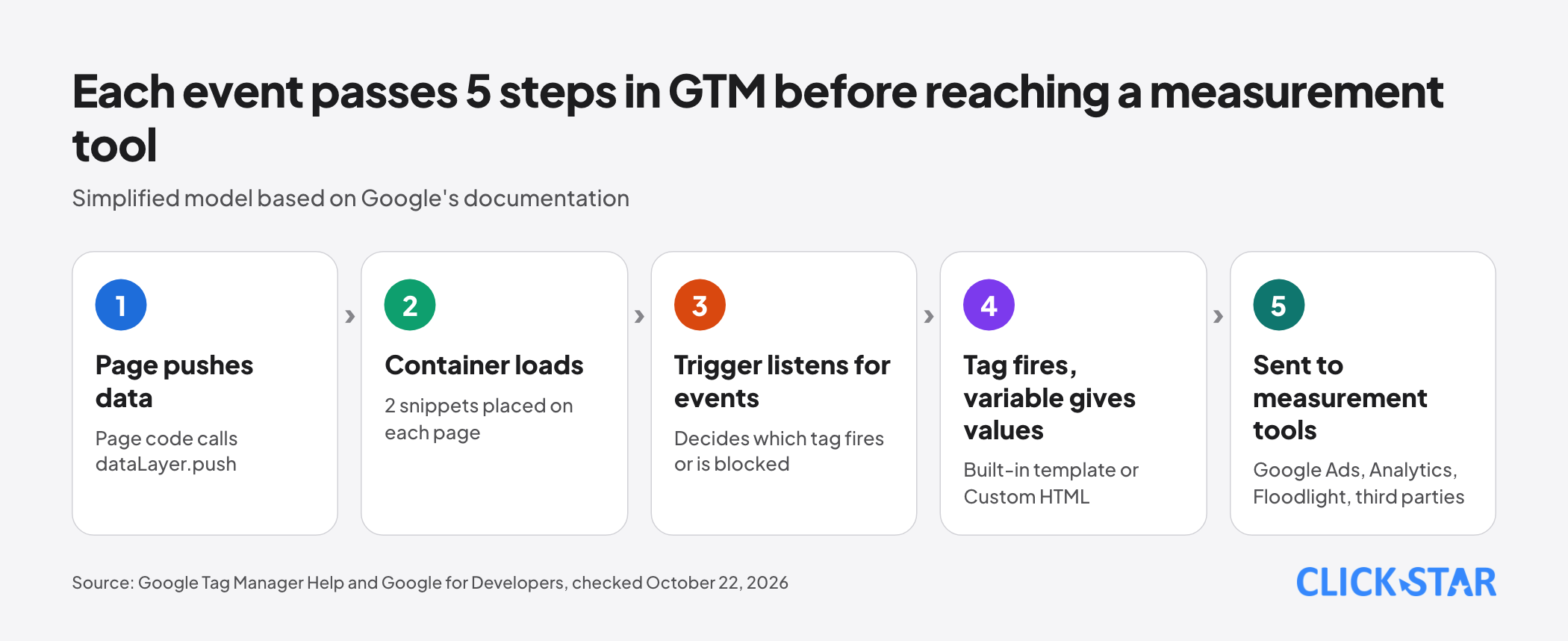
A container is a set of tags, triggers, variables and related configuration installed on a website or app. According to Tag Manager Help, a container can replace all other manually coded tags, including Google Ads, Google Analytics, Floodlight and third-party tags.
- Tag: code from an analytics or advertising vendor; GTM publishes it instead of it being pasted into the source code.
- Trigger: listens for an event such as a form submission, and decides which tag fires or is blocked.
- Variable: a value used in tags and triggers, either built-in or user-defined.
- Data layer: a JavaScript object that temporarily stores interaction data; the page pushes data into it with dataLayer.push.
On the mechanism, the Data layer documentation from Google for Developers (updated October 13, 2026, read October 22, 2026) says GTM processes messages first in, first out; messages pushed later by page code or a Custom HTML tag go to the back of the queue. So name the event and use a Custom Event trigger.
GTM is not always needed. On the page "Google Tag Manager vs. gtag.js", Google says that if only default metrics such as page views, clicks and scrolls are needed, setting up the Google tag is enough. The comparison table lists Tag Manager and gtag.js as free.
Web container and server container
On the page "Client-side tagging vs. server-side tagging", client-side tagging has 1 container on the website, and the browser sends requests straight to each Google product or partner. Server-side tagging has 2 containers: the web container generates events, and the server container receives requests, applies rules and then forwards them.
Google lists 3 benefits: less processing in the browser, filtering or editing requests to protect data, and normalizing data. A server container can remove personal identifiers before passing data on, and a first-party context allows a tighter CSP.
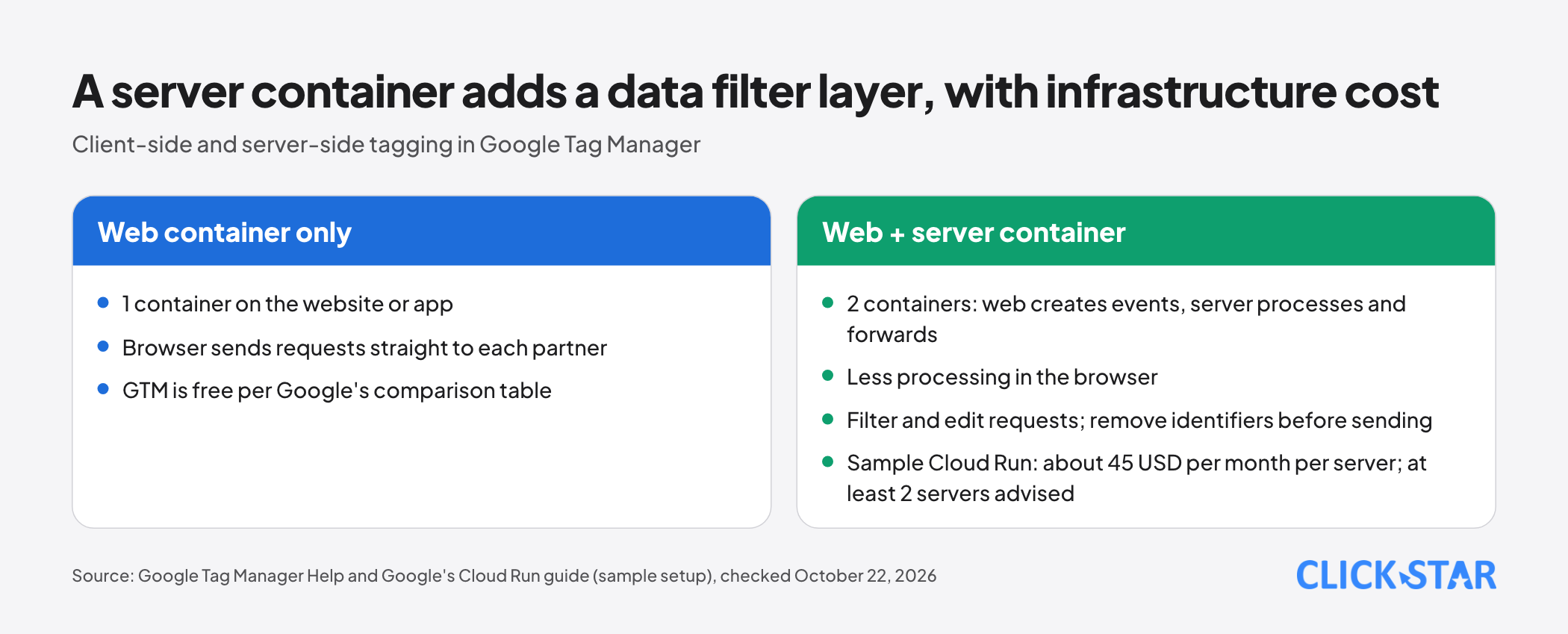
The Cloud Run setup guide from Google for Developers (updated May 12, 2026, read October 22, 2026) estimates about 45 USD per month per server, for 1 vCPU, 0.5 GB of memory and always-allocated CPU.
Google recommends at least 2 servers to reduce the risk of data loss in an outage, so by the same estimate 2 servers are about 90 USD a month (Click Star's multiplication). This is an estimate for a sample setup, not a quote. The pages Click Star opened do not state a Tag Manager 360 price.
Who can do what: permissions, workspaces, Preview and versions
On the page "Managing users and permissions", account level has Admin and User. At container level, besides No access there are 4 levels: Read, Edit, Approve, Publish. Neither Edit nor Approve can publish; Click Star advises granting the lowest level that covers each person's work.
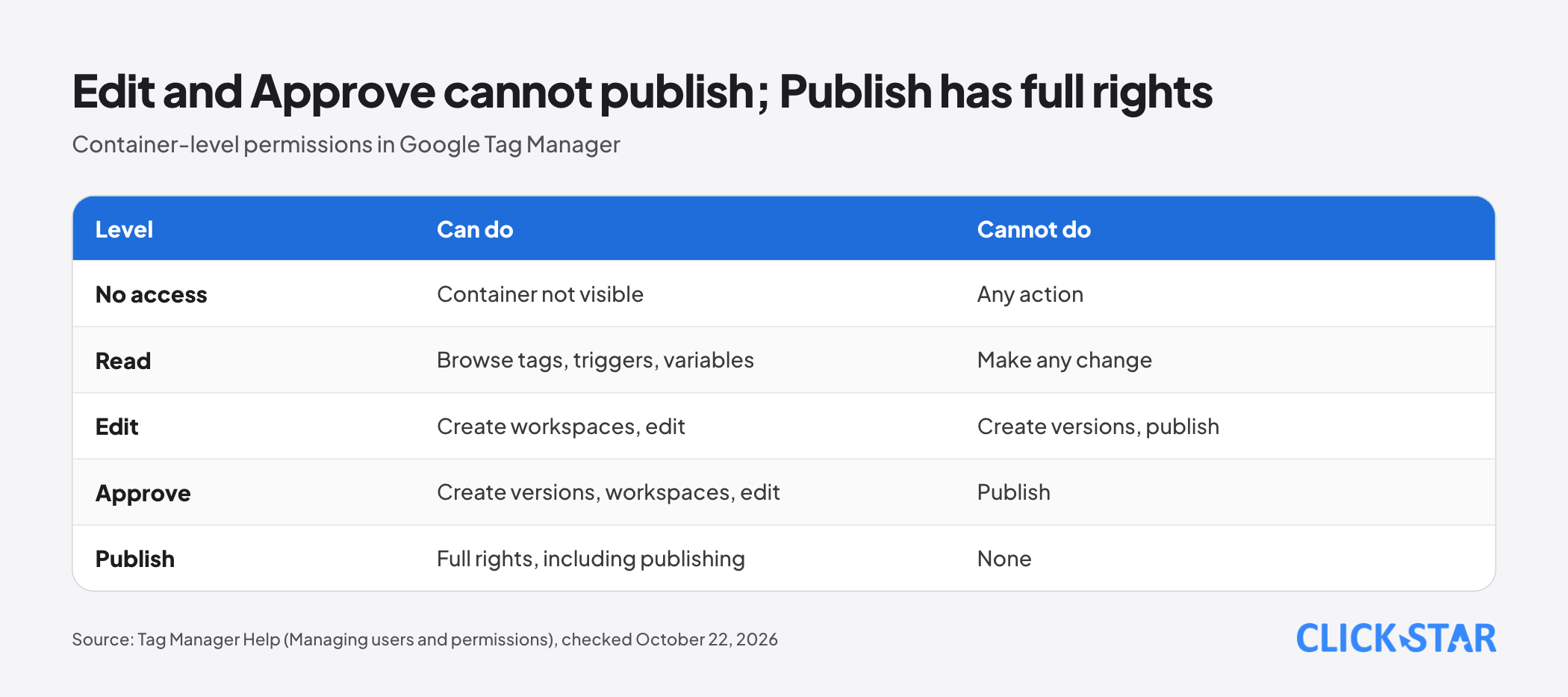
Google advises at least 2 administrators, a personal account for each person instead of a shared login, and having the business create the GTM account itself and add the agency's Google account. If a container has no administrator left, it is deleted automatically; users who still have read access have 30 days to export the data.
Workspaces. Every change is made in 1 workspace. Standard accounts can have up to 3 workspaces at a time, while 360 accounts have no limit; Approvals and Zones are also 360-only. Workspaces stop colleagues from accidentally publishing each other's unfinished work.
Preview. Preview mode opens the website as if the draft were published, connected to Tag Assistant to show which tags fire and in what order. Form and link triggers break easily, so the page "Best practices for trigger configuration" advises testing them in Preview.
Versions. A version is a snapshot of the configuration; each publish records 1 version with the time and publisher. If something is published by mistake, publish an earlier version again.
Risks: Custom HTML, third-party tags and Content Security Policy
On the Custom tags page, when no template exists you can use Custom Image or Custom HTML (Function Call is only for mobile app containers), but Google advises built-in templates to avoid performance and malware problems.
The Malware detection page says a provider infected by tainted third-party libraries or templates can pass malware to your site through a Custom HTML tag.
The page "Tag Manager and 2-step verification" says administrators can require 2-step verification before Custom JavaScript variables, Custom HTML tags or user settings are edited.
Google also offers custom templates in Sandboxed JavaScript, which run under declared permissions and are safer than Custom HTML. Community Template Gallery templates are provided as is, at the user's risk, so treat them as external code.
On Content Security Policy (CSP), the guide "Use Tag Manager with a Content Security Policy" (updated September 18, 2026, read October 22, 2026) advises using a nonce for the container snippet and discourages 'unsafe-inline'. Custom JavaScript variables return undefined if the CSP does not allow 'unsafe-eval'; Google recommends custom templates instead.
Speed. The page "Manage container size and efficiency" says that when the Size indicator passes 70%, you should optimize: merge similar tags, delete unused tags and variables, reduce Custom HTML.
The Web Almanac 2025 chapter Third Parties (published January 15, 2026, updated January 17, 2026) shows about 90% to 92% of pages across rank groups use at least 1 third party; across all sites, the median is 83 third-party requests on desktop and 79 on mobile.
googletagmanager.com is among the 10 most common third-party domains. Limits: CNAME cloaking and server-side tracking reduce how much third-party activity is visible from the browser side, and the Almanac counts them as first party, so the figures are a lower bound.
Separately, the crawler does not scroll or interact, so it may miss lazy-loaded resources.
Click Star's tag control framework
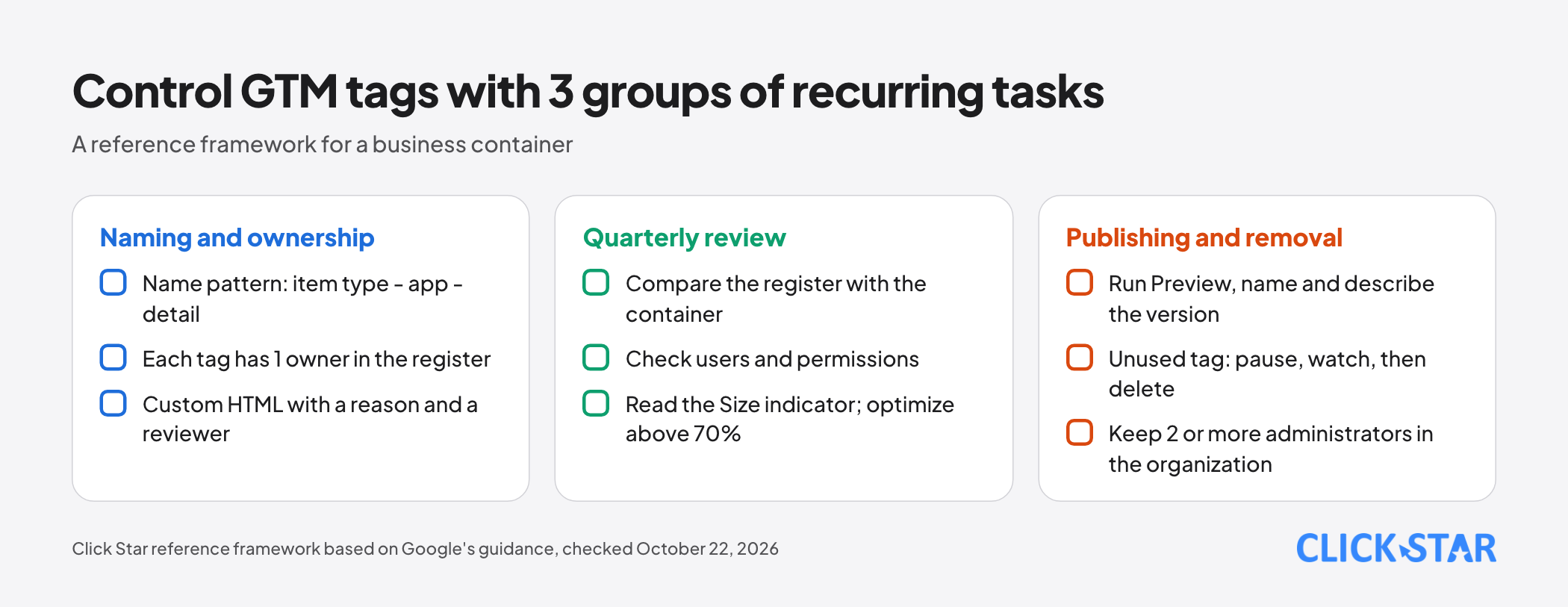
This is a reference framework from Click Star, not a measurement and not from an outside source. Google's page "Organize your containers" suggests the pattern "item type - app name - detail". Click Star extends it into 4 tasks.
- Name items with Google's pattern, adding the month or a request code. Example: "Tag - GA4 - contact form submit - 2026-10".
- Keep a tag register: 1 owner per tag, plus purpose, vendor, tag type, data sent, date added and date last reviewed.
- Review quarterly: compare the register with the container, check users and permissions, read the Size indicator, revisit Custom HTML.
- Remove tags through a process: pause first (GTM has a Pause function), watch for 1 cycle, then delete.
Priority for a new tag: a built-in template, then a community template whose code was read, last a Custom HTML tag with a stated reason and reviewer.
Consent Mode in GTM
A separate Click Star article covers cookie banners and Consent Mode v2; here only GTM configuration is covered. The page "Tag Manager consent mode support" describes a Consent Initialization trigger that fires before all other triggers, meant for tags that set or update consent state.
The page "Set up consent mode" distinguishes basic mode (Google tags are blocked from loading until the user interacts with the banner) and advanced mode (tags load when the page opens and send cookieless pings when consent is denied).
That page is not consistent: the description says the default is granted, while the comparison table says the default is denied. Check this in Preview when implementing.
What this means for Vietnamese businesses
By Click Star's framework: a site needing default metrics may be fine with the Google tag; with many tools, many people or an agency editing, GTM is worth using; consider server-side tagging only when data must be filtered or the CSP is strict, since it brings infrastructure and operators.
Click Star's view. The biggest risk in GTM usually sits in governance: many people with publish rights, tags with no clear owner, third-party code pasted into Custom HTML that nobody reads. This is Click Star's technical judgment, drawn from the Google documentation above.
Click Star provides SEO-ready, fast website design and digital marketing services, so it has an interest when a business needs tags set up and reviewed.
30-day plan and how to measure
A reference framework from Click Star, not taken from an outside source:
- Week 1: export the container to a JSON file as a backup, list users and permissions, make sure there are 2 or more administrators.
- Week 2: build the tag register, assign owners, list Custom HTML tags, pause tags suspected to be unused.
- Week 3: replace Custom HTML with built-in templates where possible, enable 2-step verification, agree on naming and a Preview routine.
- Week 4: delete the paused tags, measure again, schedule the first quarterly review.
How to measure: share of tags with an owner in the register; number of Custom HTML tags (trending down); the Size indicator against the 70% threshold Google states; share of publishes that were run through Preview; field LCP and INP before and after the tag cleanup.
What is not known
The Tag Manager 360 price is not on the pages opened; real server-side cost depends on traffic. There is no measurement of GTM usage or incidents among Vietnamese businesses.
A specific container's speed impact is known only by measuring, and Click Star has not checked GTM installation on each content management system.
Common mistakes
- Publishing straight away without running Preview, and without naming and describing the version.
- Several people editing 1 workspace, or granting Publish rights to a whole team.
- Pasting unfamiliar third-party code into Custom HTML without reading it or recording an owner.
- Having only 1 administrator, or letting an agency or outside individual own the GTM account.
- Using Custom HTML to deploy gtag.js or configure consent, while Google advises tag templates and the Consent APIs.
- Treating server-side tagging as automatic compliance, when it is only a tool for deciding what to send.
Related posts
Need tailored advice for your business?
Click Star helps you build a solution that fits your industry and scale. We answer every question during business hours.