How to name GA4 events consistently: a 5-step tracking plan


This article explains what a tracking plan contains, GA4 event naming rules, how the data layer works and how to test, based on Google, Snowplow and Segment documentation.
A website has 3 people each adding an event for form submissions: one names it Gui_Form, one gui_form, one form_gui_di. The GA4 report shows 3 rows for the same action. This is an illustration, not a measurement.
This article draws on Google Analytics, Google Tag Manager and Google developer documentation, plus tracking design guides from Snowplow and Twilio Segment, checked on November 3, 2026. Snowplow and Segment are other vendors, so they serve only as practice references, not GA4 rules.
Key points
- A tracking plan is a table listing each event: its name, when it fires, its parameters and its owner.
- GA4 is case sensitive: Google says
my_eventandMy_Eventare 2 different events. Click Star suggests lowercase words joined by underscores. - An event name can have up to 40 characters, and an event up to 25 parameters. Prefer recommended events such as
generate_leadto invented names. - The data layer is a queue the page pushes information into with
dataLayer.push(), which Tag Manager then reads and passes to GA4. - Test in 3 places: Tag Manager Preview, GA4 DebugView and Realtime, then a quarterly review of the plan.
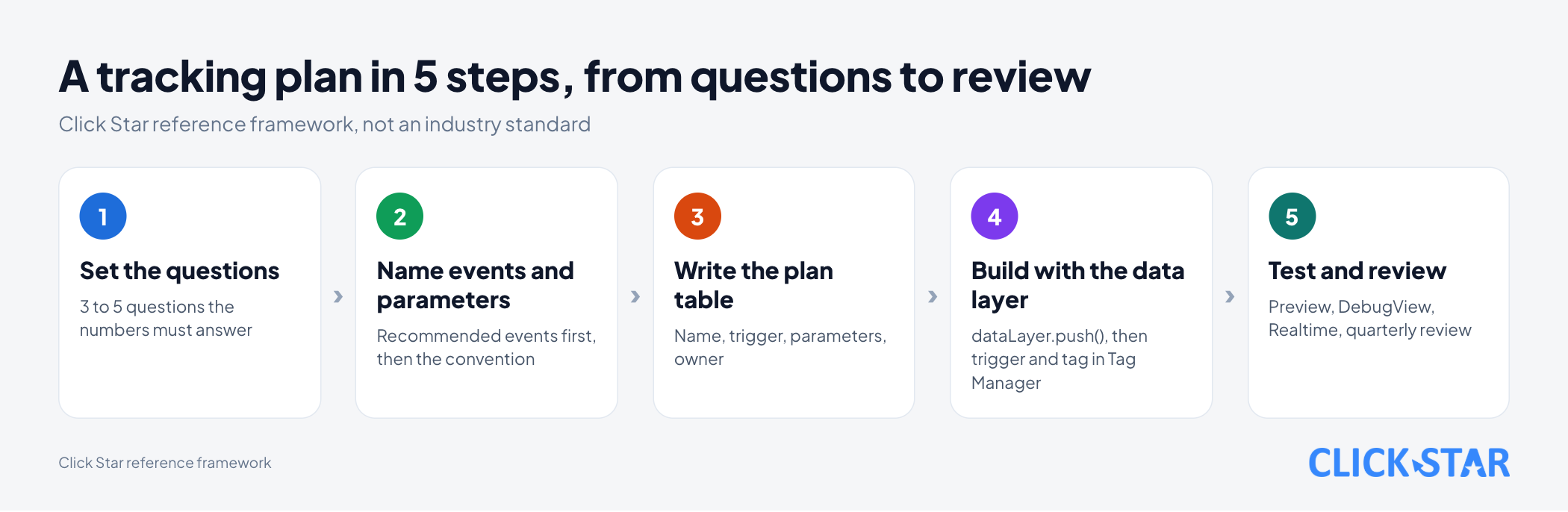
- Click Star's 5-step framework (a reference framework, not an industry standard) turns these points into tasks.
What a tracking plan is
A tracking plan answers: which events the website sends, when they fire, what they carry and who is responsible.
According to Twilio Segment's page "Data Collection Best Practices" (no date shown, read November 3, 2026), a plan states which events to track, where they live in the code and why. It should be the single source of truth about data.
According to Snowplow's page "Introduction to tracking design" (read November 3, 2026), each plan has a clear owner. Each event specification has a name, a description and trigger conditions.
These columns are a reference framework from Click Star, combining ideas from those 2 pages, not a Google standard:
- Event name, character for character as sent to GA4.
- 1-sentence description and trigger condition: which page, which button.
- Parameters: name, type, example, required or not.
- The matching GA4 recommended event, and whether it is a key event.
- Owner, last update date, status (draft, released, retired).
Naming events: GA4 rules and extra conventions
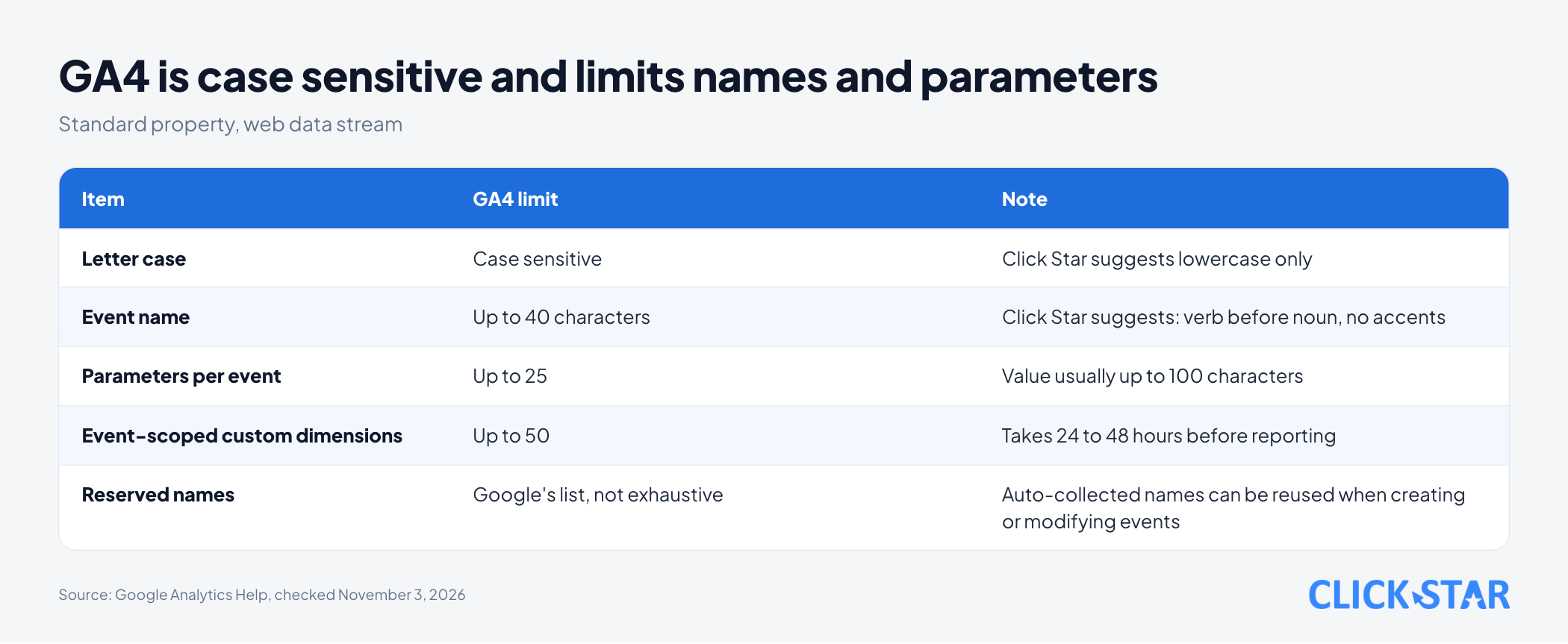
According to the Google Analytics Help page "Event naming rules" (no date shown, read November 3, 2026), event names are case sensitive, start with a letter, use only letters, numbers and underscores, and have no spaces.
The page also lists names reserved for websites; the list is not exhaustive and may change. Google allows reusing automatically collected event names (such as page_view, scroll) when you create or modify events; other reserved names trigger an error.
On the same page, parameter names cannot start with _, firebase_, ga_, google_ or gtag.; some names such as user_id, session_id, currency are reserved for custom dimensions.
Beyond that, tools disagree. Segment recommends Title Case for event names and snake_case (lowercase words joined by underscores) for property names. Snowplow says consistency matters more than which style you pick.
For GA4, Click Star suggests lowercase, underscores, verb before noun, English without accents, such as request_quote or start_chat.
Use recommended events first
According to the Google Analytics Help page "Recommended events" (no date shown, read November 3, 2026), recommended events are ones you implement yourself, but with names and parameters predefined by Google. For example generate_lead fits a form submission and purchase fits a completed purchase.
According to the page "About events" (no date shown, read November 3, 2026), create a custom event only when no other event fits. Also, custom events do not appear in most standard reports.
Limits to know
According to the page "Event collection limits" (no date shown, read November 3, 2026), GA4 does not log anything beyond these limits:
- Event name: up to 40 characters; a key event with a longer name is not reported as a key event.
- Up to 25 parameters per event; a parameter name up to 40 characters and a value up to 100 (
page_title300,page_referrer420,page_location1,000). - Web streams have no limit on distinctly named events; app streams allow 500 per app user.
To see a parameter in reports, create a custom dimension. According to the page "About custom dimensions and metrics" (no date shown, read November 3, 2026), a standard property allows up to 50 event-scoped dimensions, and a new dimension takes 24 to 48 hours before it can be reported on.
The data layer: a notice board between the page and Tag Manager
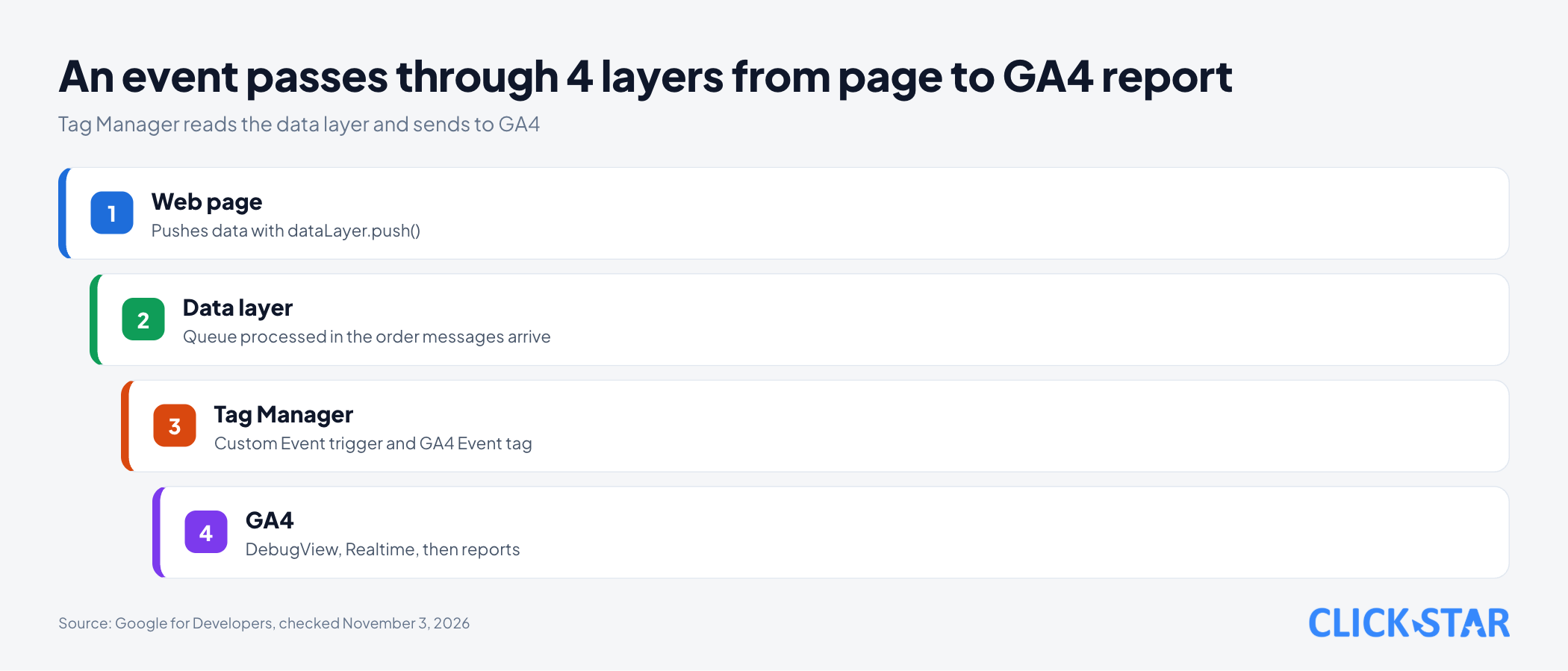
According to Google for Developers' page "The data layer" (updated October 13, 2026), the data layer is a JSON object that Tag Manager and gtag.js use to receive information. The page writes to it; Tag Manager reads it and decides which tag runs.
The example sends generate_lead when the form lien_he_cuoi_trang is submitted. The dataLayer.push syntax follows Google's documentation; when to call it is up to you, and at page level it fires on every load. form_id and lead_type are illustrative names.
<script>
  window.dataLayer = window.dataLayer || [];
  document.addEventListener('submit', function (e) {
    if (e.target.id !== 'lien_he_cuoi_trang') return;
    dataLayer.push({
      'event': 'generate_lead',
      'form_id': 'lien_he_cuoi_trang',
      'lead_type': 'bao_gia'
    });
  });
</script>
In Tag Manager, you create a Custom Event trigger named generate_lead and a GA4 Event tag with the same name, taking form_id and lead_type from data layer variables. This follows the sample setup on the page "Measure ecommerce" (Google for Developers, updated October 14, 2026).
Data layer errors that Google names directly:
- Do not overwrite
window.dataLayer; declare it with||above the container code, then only usepush. - The name
dataLayeris case sensitive:datalayer.push(...)does not work. - Keep variable names consistent across pages; variables live only on the current page.
- Tag Manager processes messages in the order they arrive, so include an event name and use a Custom Event trigger.
Testing before and after release
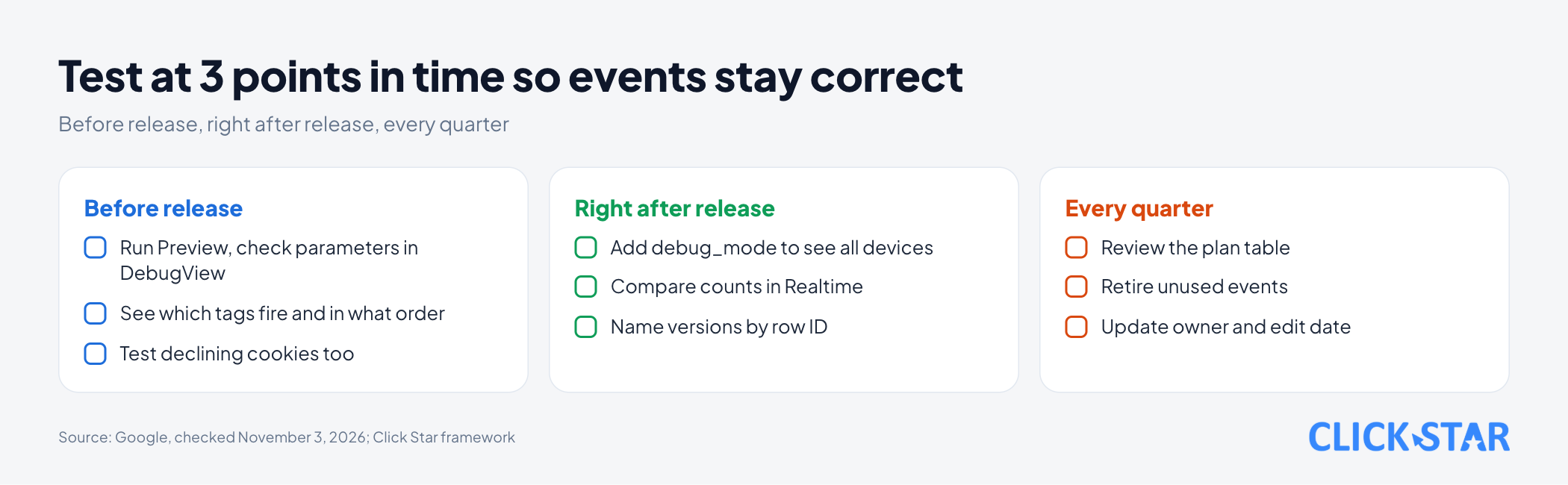
Testing means running a real event and watching where it goes, in 3 places.
Tag Manager Preview (before release). According to the page "Preview and debug containers" (no date shown, read November 3, 2026), you browse the website as if the draft were published, and see in Tag Assistant which tags fired and in what order.
GA4 DebugView (alongside Preview). According to the page "Monitor events in DebugView" (no date shown, read November 3, 2026), DebugView shows a device's events and parameters in real time, but debug mode must be on.
In preview mode, Tag Assistant turns it on for your own device, so you can check parameters during Preview; to see all devices, add debug_mode to the configuration.
Realtime report (check the counts). According to the page "About events", the card "Event count by event name" shows how many times each event fired in the last 30 minutes. The page "Realtime report" (read November 3, 2026) says it operates without a formal service level objective, so do not use it as a final number.
Change log, owners and review
A plan is only useful while correct, so record each change: date, editor, reason. According to the Tag Manager Help page "Publishing, versions, and approvals" (no date shown, read November 3, 2026), each publish creates a version with a name, a description and a publish history, and lets you go back to an earlier one.
Click Star suggests writing the plan's row ID into the version description, and reviewing quarterly to retire unused events.
What this means for Vietnamese businesses
Click Star found no open source measuring how many Vietnamese businesses keep a measurement document. This section is a technical judgment, not a statistic.
A possible case: one company builds the website, another runs ads, and in-house staff add a call button and a Zalo button. Each names events by habit, and when someone leaves, the knowledge leaves too.
Risks to block at the design stage
Personal data in parameters. According to the Google Analytics Help page "Best practices to avoid sending Personally Identifiable Information (PII)" (no date shown, read November 3, 2026), Google policy forbids sending personally identifiable data, including email addresses and personal mobile numbers.
This is not legal advice; check the original text of the law on personal data.
Duplicates. According to the page "Minimize duplicate key events with transaction IDs" (no date shown, read November 3, 2026), GA4 removes duplicate purchases with the same transaction_id, for web streams only. The ID must be unique per order, must not contain information that identifies customers, and must not be an empty string, because every order with transaction_id="" is treated as one.
Missing consent. Test the case where a visitor declines analytics cookies, because with Consent Mode DebugView does not show events then. The plan should record which events depend on consent.
Click Star's view. A tracking plan is a small contract between the people who need numbers and the people who add the code. A vague contract lets each side read it in its own favor, and the report becomes a place for arguments.
Click Star offers digital marketing, CRM, CDP and data dashboard services, so it has a related interest. First, give each event an owner with a real name.
What to do: the 5-step framework
This is Click Star's reference framework, not taken from an outside source.
Step 1. Set the business questions. Write 3 to 5 questions the numbers must answer, and keep only events that serve them.
Step 2. Name events and parameters. Look first in Google's list of recommended events. If none fits, name a custom event by the convention and check the 40-character length and reserved names.
Step 3. Write the plan table. Fill the columns above, assign owners, and note which parameters must never hold personal data and which events need consent.
Step 4. Build with the data layer. Developers add dataLayer.push() calls as the table says; the Tag Manager person creates variables, triggers and tags, and names versions by row ID.
Step 5. Test and review. Run Preview, check DebugView, compare Realtime, then schedule a quarterly review.
How to measure whether the plan works
There is no standard threshold from an outside source. These are Click Star's suggested indicators, for tracking trends:
- Share of events in GA4 that have a matching row in the table.
- Number of events without an owner.
- Number of events with an empty required parameter in a sample check.
- Number of orders with a duplicate or empty
transaction_id, counted on the website side or in sampled DebugView checks, since GA4 merges duplicates.
Common mistakes
- Naming events on the spot by personal habit, without checking the plan.
- Mixing upper and lower case, though GA4 treats them as different.
- Creating a custom event when a Google recommended event exists.
- Putting changing values in the event name instead of a parameter.
- Overwriting
window.dataLayer, or using a different variable name on each page. - Skipping tests for visitors who decline cookies.
- Leaving the plan untouched for a year, with no owner and no review.
What is not known
Click Star has no Vietnam measurement of how many websites have a measurement document, or of how fragmented reports become when names differ. The business situations described are inferences from how the tools work.
Google Analytics and Tag Manager help pages show no edit date, so limits and the reserved-name list may have changed. Segment and Snowplow guidance reflects their own products; no independent source compares naming conventions.
Related posts
Need tailored advice for your business?
Click Star helps you build a solution that fits your industry and scale. We answer every question during business hours.