GA4 for business websites: events, key events, lead tracking and data limits
The GA4 event model, key events, lead tracking, internal traffic filters, data retention and report limits, based on Google Analytics Help pages read on 22/10/2026.
Many business websites run Google Analytics 4 (GA4), yet nobody is sure the number of "visitors who left their details" is right. Causes include event naming, key event marking, missing internal-traffic filters and unknown data limits.
This article explains the event model, lead measurement, internal-traffic filtering, retention, thresholds, sampling, delay and verification. Sources are the Google Analytics Help pages and developers.google.com/analytics, checked on October 22, 2026.
Click Star already has articles on cookie banners and Meta CAPI. Disclosure of interest: Click Star sells data dashboard and digital marketing services.
Key points
- GA4 records every interaction as an event, in 4 types: automatically collected, enhanced measurement, recommended and custom. Google advises creating custom events only when no other type fits.
- A key event is an event marked as important to the business. A standard property can mark up to 30 key events, and marking does not change past data.
- For contact forms, the recommended event generate_lead is the starting point. A self-named parameter must be registered as a custom dimension to reach reports.
- Data filters take permanent effect once applied. Run them in Testing state before switching to Active.
- A standard property keeps event-level data for 2 or 14 months (default 2 months), and this setting affects only Explorations and funnel reports.
- Figures can be withheld by thresholds, sampled (above 10 million events per query) or not yet fully processed (24 to 48 hours).
The event model and the 4 event types
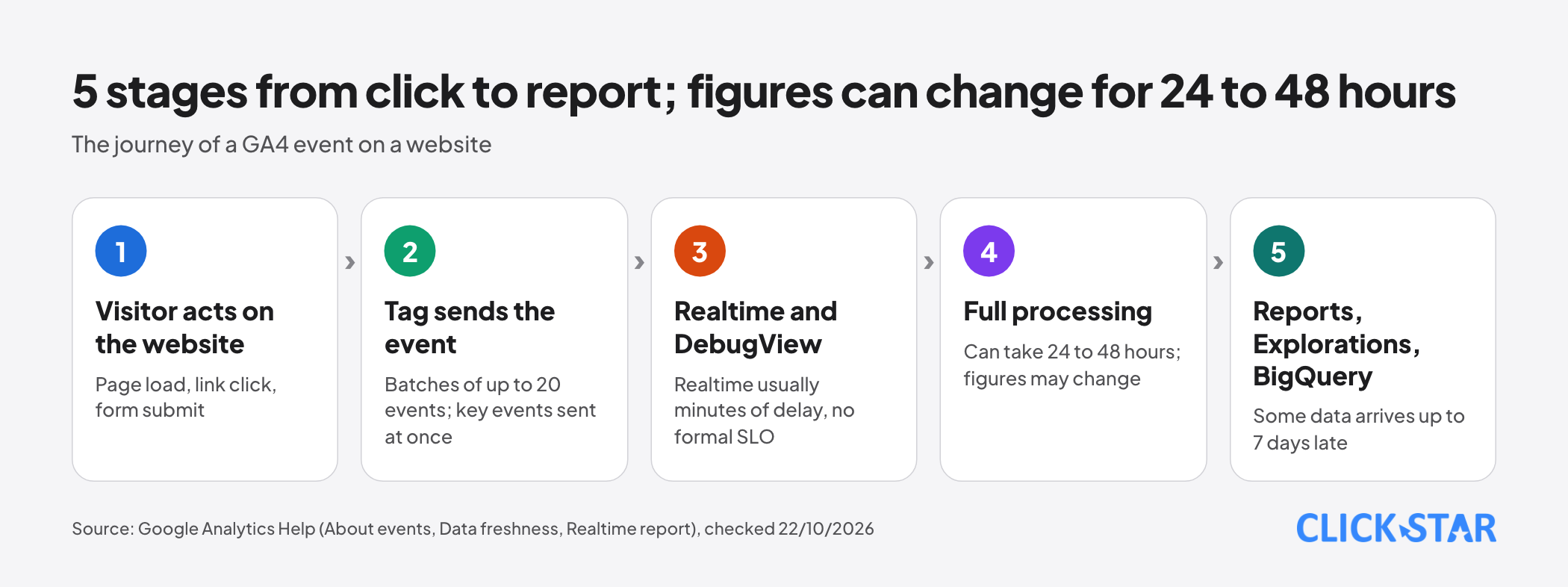
According to the "About events" page (no date shown, read on October 22, 2026), an event measures a specific interaction such as a page load, a link click or a purchase. It appears in Realtime after a few minutes, then is fully processed before it reaches reports.
Most events are batched, up to 20 per batch, while key events are transmitted immediately.
Per the "Event collection limits" page, an event name may have up to 40 characters, an event up to 25 parameters, and a parameter value up to 100 characters (page_title 300, page_referrer 420, page_location 1,000). A key event name over 40 characters is not reported as a key event.
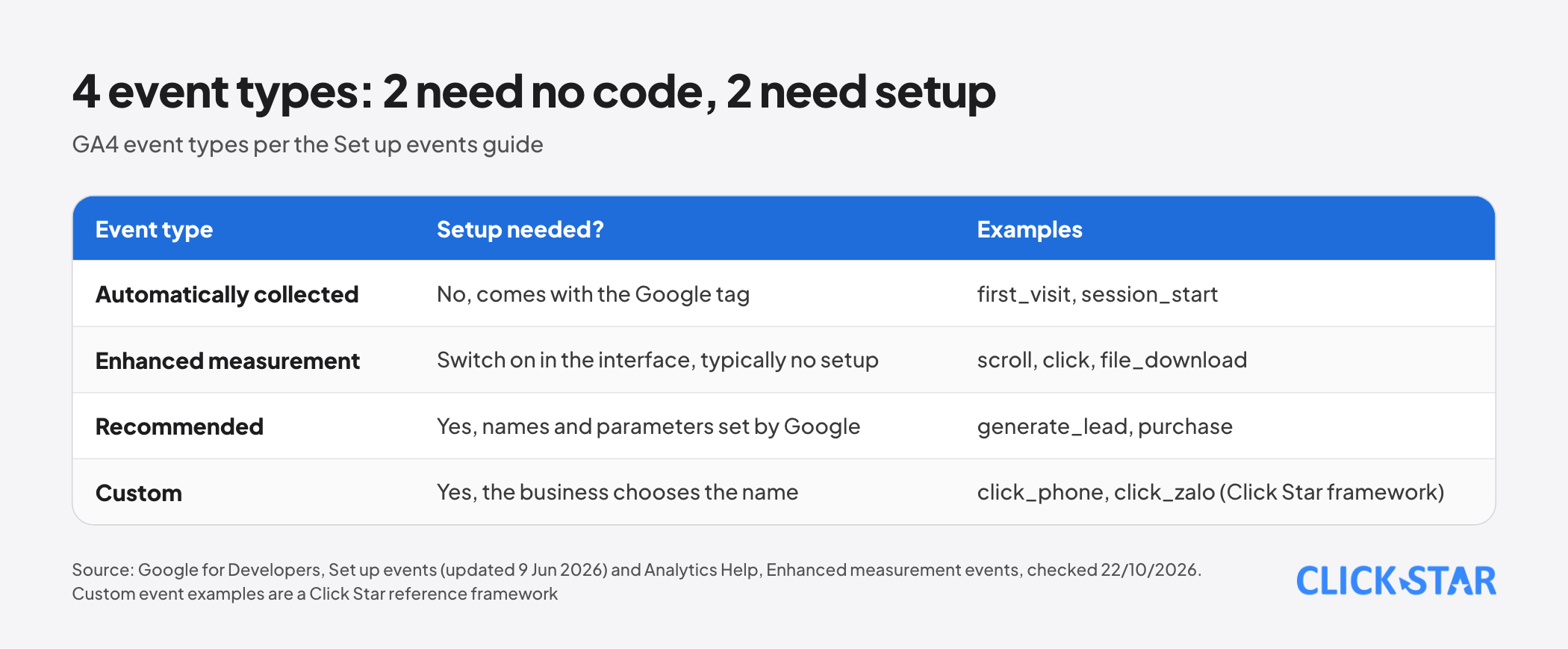
The "Set up events" guide (updated June 9, 2026) lists 4 types. Automatically collected events such as first_visit and session_start come with the Google tag. Enhanced measurement events are switched on in the interface and typically need no setup: scrolls, outbound clicks, site search, YouTube video, file downloads and forms (the "Enhanced measurement events" page).
Recommended events have names and parameters set by Google, such as generate_lead and purchase. Custom events are named by the business and do not appear in most standard reports, so they need Explorations or custom reports.
Key events: marking the actions that matter
Per the "About key events" page, a key event measures an action particularly important to the business, and any collected event can become one. Google renamed the concept: what Analytics once called a conversion is now a key event.
Per the "Conversions vs. key events" page (read on October 22, 2026), "conversion" now refers to ad measurement, and conversions created from Google Ads do not appear in standard GA4 reports.
Per the "Mark events as key events" page, a standard property can mark up to 30 key events. A key event can take up to 24 hours to show in standard reports.
The counting method also changes lead numbers. Per the "Change the counting method of key events" page, "Once per event" is recommended and counts every trigger, while "Once per session" is the legacy method and counts only 1 time per session.
Setting up lead measurement for a website
The recommended lead events are generate_lead, qualify_lead, disqualify_lead, working_lead, close_convert_lead and close_unconvert_lead (the "Recommended events" page). The Lead acquisition report has 3 separate metrics: New leads (generate_lead), Qualified leads (qualify_lead) and Converted leads (close_convert_lead), each counting unique users.
A form can be measured 2 ways: firing the event from code on successful submit, or creating an event in the interface from the page_view of a thank-you page, as in the "Tutorial: Set up a key event". That tutorial warns against marking page_view itself as a key event, because every page view would become one.
Click Star's view, not quoted from Google: a thank-you page is easy to double count when reloaded and hides which form was used. Sending the event from code after the server saves the lead is usually more accurate.
Click Star reference framework, not taken from outside sources. Use generate_lead for every form, with self-named parameters such as form_type (lien_he, bao_gia) and cta_location. For phone or Zalo clicks, use separate events such as click_phone and click_zalo. Click Star found no document saying enhanced measurement fires these automatically, so check them in DebugView.
Inference, not tested on a real website: a web Zalo link leaves the domain, so the enhanced measurement outbound click event may already count it. When adding click_zalo, check DebugView to avoid double counting.
Custom parameters and custom dimensions
Per the "Set up event parameters" guide (updated June 3, 2026), a custom parameter must be registered as a custom dimension or metric before it can be used in reports. Without registration the data is still collected but cannot be analyzed.
Per the "Create event-scoped custom dimensions" page, go to Admin, Custom definitions, choose Event scope and enter the exact parameter name.
Filtering internal and developer traffic
Per the "Data filters" page, a data filter removes events from processing, in 3 types: developer (removes debug-mode activity), internal and hostname. The effect is permanent: excluded data is never available in Analytics or BigQuery, and past data is unchanged.
For internal traffic (the "Filter out internal traffic" page), step 1 is declaring IP addresses in the web stream's tag settings, and Analytics adds a traffic_type value, "internal" by default. Step 2 is creating a filter that excludes events with that value.
A filter has 3 states: Testing, Active and Inactive. In Testing, matching data lands in the "Test data filter name" dimension for checking. A filter takes 24 to 36 hours to apply, a property can have up to 10, and app users cannot be filtered.
From September 21, 2026, the "What's new in Google Analytics" page lists an Include type for hostname filters, an allowlist of domains permitted to send data. That page notes that Include blocks events with an empty hostname (such as gtag.js) and does not apply to Measurement Protocol events.
Click Star's inference: an IP filter removes only machines using the declared addresses, so staff working remotely or on mobile networks may not be filtered.
Retention, thresholds, sampling and delay
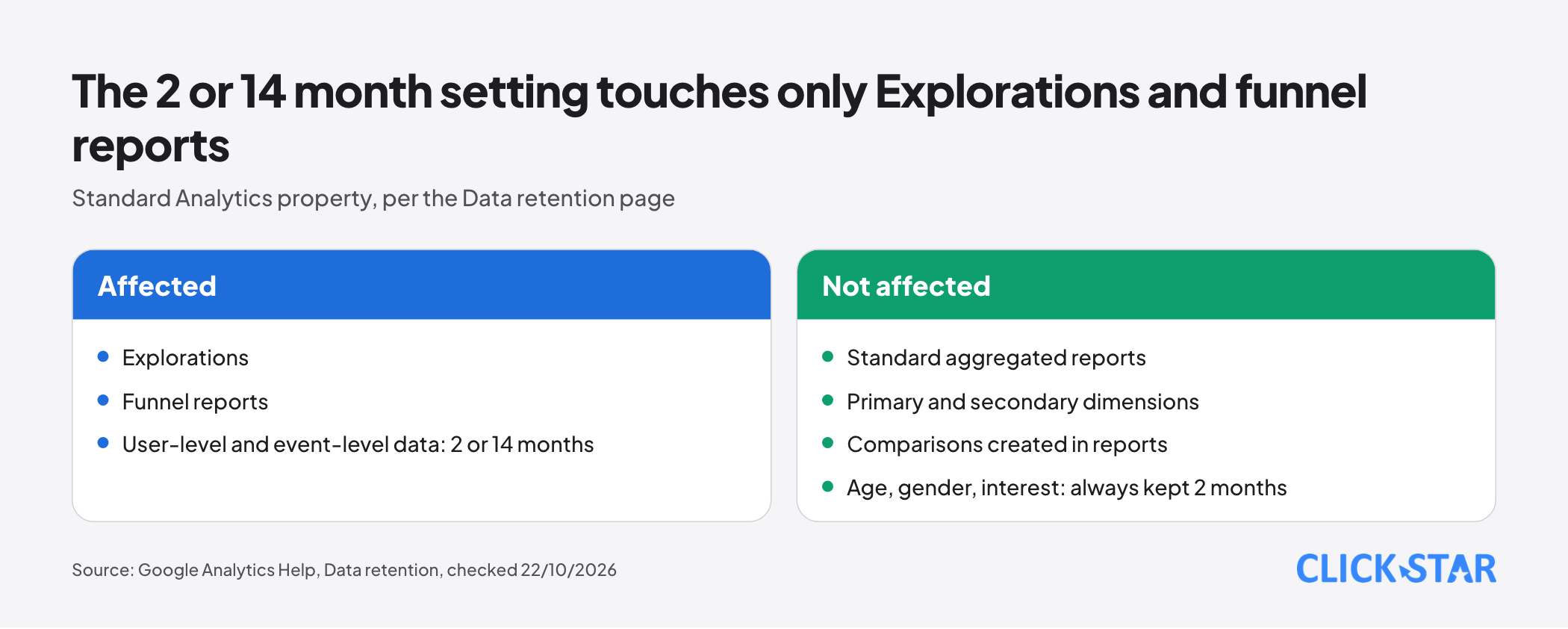
Per the "Data retention" page, a standard property sets user-level and event-level retention to 2 or 14 months. Age, gender and interest data are always kept for 2 months.
That page says the setting does not affect standard aggregated reports, including primary and secondary dimensions and comparisons, only Explorations and funnel reports. After a change, Analytics waits 24 hours; an increase applies to data already collected and not yet deleted.
Per the "Get started with Explorations" page (read on October 22, 2026), Analytics properties keep 2 months of data by default.
Thresholds. Per the "About data thresholds" page, thresholds are set by the system and cannot be adjusted. Widening the date range often helps.
Sampling. Per the "About data sampling" page, event-level queries on a standard property have a limit of 10 million events. Above it, Analytics uses part of the data and scales up the result. Per the "Configuration limits" page, it applies to ad hoc queries, not standard ones.
Delay. Per the "Data freshness" page, processing can take 24 to 48 hours and figures may change meanwhile. Some data arrives up to 7 days late, and attribution credit for key events can change for up to 12 days.
Checking with Realtime and DebugView
Realtime shows activity in the last 30 minutes, usually with a delay of minutes, and per the "Realtime report" page runs with no formal Service Level Objective (SLO).
DebugView shows the event stream of a device in debug mode, enabled through Tag Assistant or the debug_mode parameter. If a visitor has not granted Analytics cookies under consent mode, events do not appear (the "Monitor events in DebugView" page).
Reading reports, Explorations and BigQuery
Explorations (the "Get started with Explorations" page) add free-form, funnel, path and cohort.
BigQuery (the "BigQuery Export" page) receives raw events for SQL queries. Per the "Set up BigQuery Export" page, the daily export of a standard property has a limit of 1 million events; if it is consistently exceeded, the daily export is paused and earlier days are not reprocessed.
Streaming export has no event limit, but BigQuery charges $0.05 per GB. BigQuery figures can differ from reports because they are raw events without the value additions reports apply. Per the "Reporting surfaces comparison" page, behavioral modeling is not in BigQuery.
User consent and Click Star's view
The "About consent mode" page describes a basic mode (tags do not load until the visitor interacts with the banner) and an advanced mode (tags load with defaults set to denied and send cookieless pings).
The "Behavioral modeling for consent mode" page says Analytics estimates the behavior of visitors who decline based on those who accept, and only when confidence is high.
That page requires advanced consent mode, 1,000 events a day with analytics cookies denied for 7 days, and 1,000 daily users who consent on at least 7 of the previous 28 days.
Click Star's view. GA4 is enough to track website leads for a business if it is defined clearly from the start: an event list, a person responsible and a naming convention.
Click Star recommends comparing GA4 lead counts weekly with the system that receives leads (CRM or email). A sudden gap usually signals a tag error or double counting.
A 14-day plan
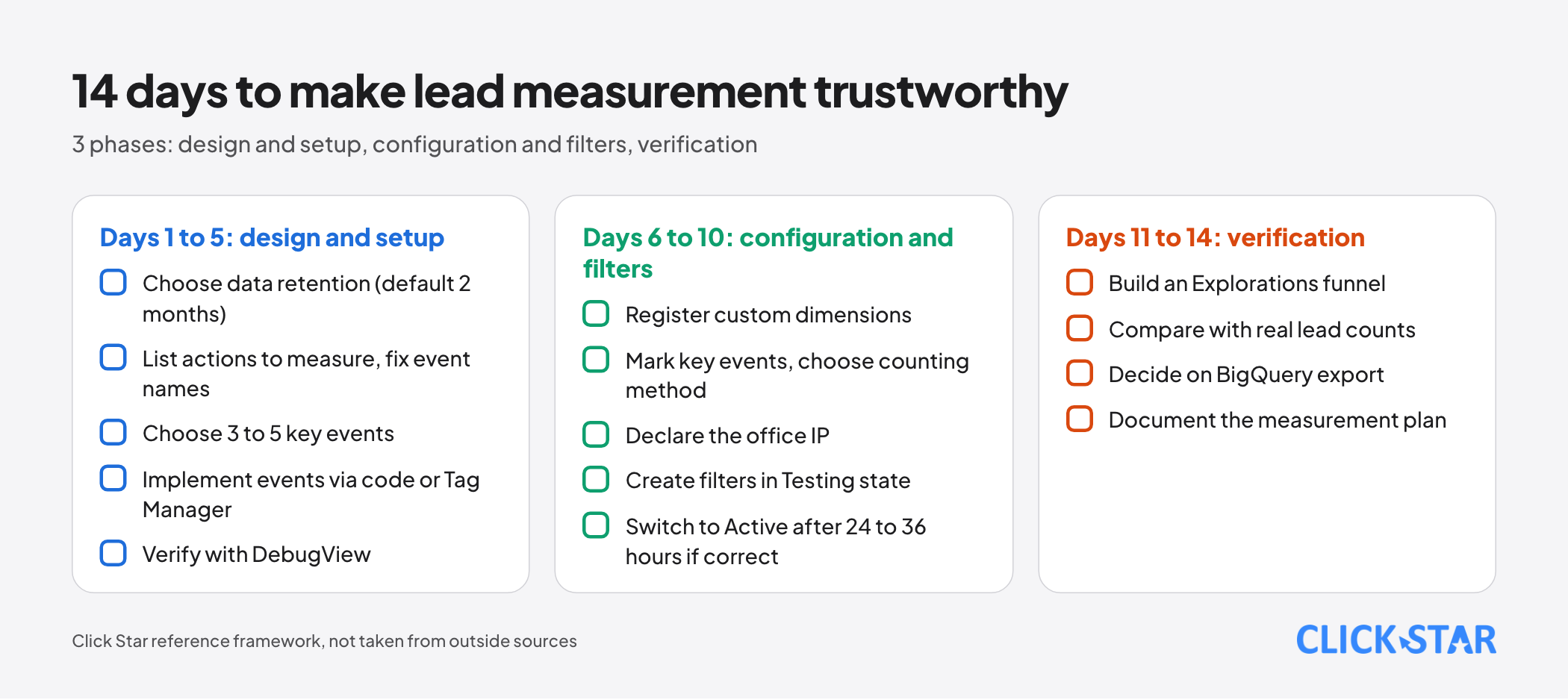
The plan is a Click Star reference framework, not taken from outside sources.
- Days 1 to 2: choose data retention (default 2 months, consider 14), list the actions to measure, fix event and parameter names, choose 3 to 5 key events.
- Days 3 to 5: implement events through code or Tag Manager, verify with DebugView.
- Day 6: register custom dimensions, mark key events, choose the counting method.
- Days 7 to 8: declare the office IP, create internal and developer filters in Testing state.
- Days 9 to 10: check Testing data after 24 to 36 hours, switch to Active if correct.
- Days 11 to 12: build an Explorations funnel, compare with real lead counts.
- Days 13 to 14: decide on BigQuery, document the measurement plan.
Common mistakes
Click Star's own summary of the pages read, not a frequency statistic; items 2 and 6 are inference.
- Marking page_view as a key event, so every page view becomes a lead.
- Double counting forms: enhanced measurement form_submit, plus a separate event, plus a thank-you page event for the same submission.
- Sending custom parameters but forgetting to register custom dimensions.
- Forgetting to filter internal and developer traffic.
- Setting a filter to Active immediately without trying Testing.
- Missing the payment step: sending purchase without transaction_id or skipping begin_checkout and add_payment_info.
- Closing a report while data is still being processed.
What is not known
Click Star has no independent measurement of GA4 accuracy for Vietnamese businesses, nor of the share of data lost to cookie refusals in this market.
Click Star does not know the current retention setting of your property, which may differ from the 2 month default, so check it in Admin. The views on double-counted forms, thank-you pages and IP filtering are technical inference, not quotations from Google.
Related posts
Need tailored advice for your business?
Click Star helps you build a solution that fits your industry and scale. We answer every question during business hours.